

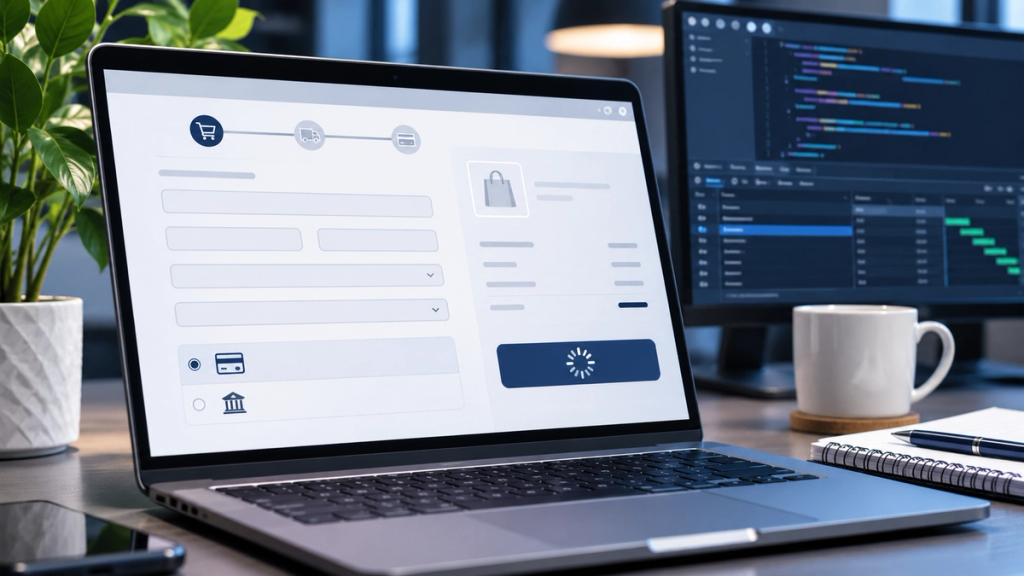
WooCommerce Checkout Stuck Loading?
A customer adds products to their basket, enters their delivery address and clicks Place Order. Instead of receiving an order confirmation, the WooCommerce checkout keeps spinning. The customer cannot tell whether the payment succeeded, and the retailer risks another failed purchase attempt.
Why is WooCommerce checkout stuck loading?
Common causes include JavaScript errors, incompatible plugins, Checkout Block conflicts, failed AJAX or Store API requests, caching problems, expired sessions, payment gateway timeouts, shipping validation, incorrect redirects and server errors.
The first step is identifying whether checkout failed before order submission, during payment processing or after payment succeeded.
Before Troubleshooting: Check Whether the Customer Has Already Been Charged
Important: Do not ask a customer to submit another payment until the original transaction has been checked.
A loading spinner does not necessarily mean payment failed. A payment provider might have accepted the transaction even though WooCommerce never displayed the confirmation page.
Check the following:
- Open WooCommerce → Orders.
- Search for an order matching the customer's details and checkout time.
- Review its status and order notes.
- Open the payment provider's dashboard.
- Search for the corresponding transaction.
- Determine whether payment was declined, pending, authorised or captured.
- Check relevant webhook notifications.
- Investigate possible duplicate orders before advising another attempt.
These payment states mean different things.
| Payment or order state | What it means |
|---|---|
| No submitted order | Checkout may have failed before submission |
| Checkout draft | A draft may exist without a completed order |
| Pending payment | An order exists but successful payment is not confirmed |
| Authorised | Funds may be reserved but not captured |
| Captured | Payment has been collected |
| Completed order | WooCommerce records fulfilment as complete |
A successful transaction in Stripe, WooPayments or PayPal should be reconciled against WooCommerce before making further changes.
Never mark an unpaid order as Completed merely to make the problem disappear.
Classic Checkout vs Checkout Block: Why the Difference Matters
WooCommerce supports two checkout implementations with different technical behaviour.
| Feature | Classic Checkout | Checkout Block |
|---|---|---|
| Technology | Traditional shortcode | WordPress block interface |
| Page content | [woocommerce_checkout] | Checkout block |
| Common requests | WooCommerce AJAX | WooCommerce Store API |
| Example request | ?wc-ajax=checkout | /wp-json/wc/store/v1/checkout |
| Extensions | Traditional hooks and integrations | Block-compatible integrations |
| Diagnostics | AJAX responses and scripts | Store API responses and checkout state |
Classic Checkout may use ?wc-ajax=update_order_review when calculating totals and updating payment methods.
Checkout Block uses the Store API for cart and checkout processing. Its requests depend on valid session state, request validation and supported payment integrations.
To identify the active implementation, open the Checkout page assigned under WooCommerce → Settings → Advanced, then inspect its content in the WordPress editor.
Do not switch between Classic Checkout and Checkout Block as an automatic fix. A change could affect payment gateways, custom checkout fields and third-party extensions.
See the official WooCommerce guide to endless checkout loading for further diagnostic information.
WooCommerce Checkout Troubleshooting: Quick Diagnosis
| Symptom | First area to investigate |
|---|---|
| Spinner appears immediately | JavaScript and page resources |
| Place Order does nothing | Validation, scripts and submission |
| Payment fields are missing | Gateway scripts and compatibility |
| Cart totals keep refreshing | Shipping, tax and sessions |
| Checkout fails for certain postcodes | Delivery zones and address rules |
| Failure starts after an update | Recent changes and compatibility |
| Works on staging but fails live | Cache, hosting and environment |
| Payment succeeded but no confirmation | Transaction records and redirects |
| Checkout fails only on mobile | Browser-specific scripts and behaviour |
These symptoms suggest where to investigate. They do not establish the underlying cause.
1. JavaScript Errors Are Preventing Checkout From Finishing
WooCommerce relies on JavaScript to update order totals, display payment methods, validate information and respond to checkout actions.
When a script fails, customers may encounter an infinite loading spinner, missing payment fields or an unresponsive Place Order button.
Common triggers include:
- Theme JavaScript conflicts.
- Missing script dependencies.
- Checkout field extensions.
- Delayed or deferred JavaScript.
- Script optimisation plugins.
- Third-party payment libraries.
- Browser restrictions or blocked resources.
How to Diagnose the Problem
Open the checkout in Google Chrome, press F12 or open Developer Tools, and select Console.
Reproduce the issue and inspect the first relevant error.
For example, a JavaScript exception involving an undefined object may indicate that a required dependency failed to load. A failed script request may indicate a blocked resource or incorrect URL.
Identify which plugin, theme or integration owns the affected script.
How to Fix It Safely
Review the extension's compatibility and recent changes. If a performance plugin delays an essential checkout script, test an appropriate exclusion on staging.
Avoid editing WooCommerce core files or inserting unverified JavaScript into a production theme.
If the source requires custom development or cannot be isolated safely, involve a WordPress developer.
2. Checkout Block Is Incompatible With a Payment or Checkout Extension
Some extensions were developed primarily for WooCommerce Classic Checkout.
Their functionality may rely on traditional checkout hooks rather than the integration mechanisms used by Checkout Block.
This can affect:
- Payment gateways.
- Checkout field editors.
- Address validation.
- Express payment buttons.
- Subscription checkout features.
- Custom shipping calculations.
- Third-party checkout designs.
A payment gateway may be enabled in WooCommerce settings but unavailable on the Checkout Block.
That does not automatically mean its API credentials are wrong.
How to Diagnose the Problem
First confirm whether the store uses Checkout Block.
Then review the payment gateway and checkout extension documentation for explicit compatibility information.
Check whether the payment method is correctly registered and whether its eligibility conditions are satisfied.
For developers, Checkout Block payment integrations use their own registration and checkout-processing mechanisms.
How to Fix It Safely
Update or replace incompatible extensions with supported alternatives.
Test payment methods, checkout fields and shipping calculations before publishing any change.
Switching temporarily to Classic Checkout may help isolate a compatibility issue, but it should not be the default solution.
Ask a WooCommerce developer to investigate when custom checkout extensions or payment registrations are involved.
3. AJAX or WooCommerce Store API Requests Are Failing
When a customer changes their address or submits an order, WooCommerce communicates with the server.
If a required request fails, the checkout interface may continue waiting indefinitely.
Classic Checkout commonly uses AJAX endpoints. Checkout Block uses the Store API.
Possible problems include:
| Response | Possible investigation |
|---|---|
| HTTP 403 | Security rule, permission or nonce |
| HTTP 404 | Incorrect route, URL or rewrite |
| HTTP 500 | Server-side exception |
| HTTP 502 or 503 | Upstream server or availability issue |
| Timeout | Slow processing or external service |
| Invalid JSON | Unexpected server response |
| HTML instead of JSON | Redirect, security challenge or PHP output |
How to Diagnose the Problem
Open Developer Tools and select Network.
Filter by Fetch/XHR, reproduce the failure and inspect the affected request.
Record its URL, HTTP status, duration and response type.
Check whether the request failed before or after clicking Place Order.
For Checkout Block, investigate the Store API endpoint and relevant cart requests. For Classic Checkout, inspect the actual WooCommerce AJAX calls.
The WooCommerce Checkout API documentation explains checkout request handling.
How to Fix It Safely
Investigate the specific response and compare it with WooCommerce, PHP, security and hosting logs.
A 403 does not always mean a firewall problem, and a timeout does not automatically prove inadequate hosting.
Do not disable website security globally. Escalate persistent routing, API or server errors to the responsible developer or hosting provider.
4. Caching, CDN or Expired Sessions Are Interfering With Checkout
Unlike a normal product page, checkout contains information specific to an individual customer.
This can include basket contents, delivery details, selected payment methods and current totals.
Incorrect caching may serve outdated information or prevent checkout requests from receiving valid responses.
Potential causes include:
- Full-page caching.
- CDN edge caching.
- Reverse proxy caching.
- Expired checkout nonces.
- Stale customer sessions.
- Incorrect cart cookie handling.
- Cached API responses.
How to Diagnose the Problem
Review caching rules at every applicable layer, including the WordPress performance plugin, hosting platform and CDN.
Check whether Cart, Checkout and My Account pages are appropriately excluded from full-page caching.
Inspect failed requests for nonce errors or unexpected cached content.
A Classic Checkout AJAX response containing -1 can indicate a nonce validation failure, but the underlying reason still needs investigation.
How to Fix It Safely
Correct the relevant cache exclusions, purge affected caches and test with a fresh customer session.
Avoid disabling all caching or removing useful performance features unnecessarily.
Object caching requires separate assessment from full-page caching.
If different customers appear to receive inconsistent checkout details, treat the issue as a priority because customer-specific information must remain isolated.
5. The Payment Gateway Is Timing Out or Failing to Initialise
Payment gateways such as Stripe, WooPayments and PayPal Payments can fail at different checkout stages.
Sometimes the payment fields never appear. In other cases, the customer submits payment but the checkout continues loading.
Potential causes include:
- Payment scripts failing to load.
- Incorrect API credentials.
- Test and live mode mismatches.
- Payment request timeouts.
- Failed authentication.
- Interrupted redirects.
- Payment plugin conflicts.
- Delayed webhook notifications.
How to Diagnose the Problem
Identify the affected payment method.
Check its WooCommerce settings, integration logs and payment provider dashboard.
Determine whether the transaction was declined, remains pending, was authorised or was captured.
For UK retailers, also review the customer authentication process when relevant.
Strong Customer Authentication and 3D Secure can involve additional verification, depending on the transaction and applicable exemptions.
An interrupted authentication step may resemble a general checkout failure.
How to Fix It Safely
Verify gateway configuration, inspect the affected transaction and test using the provider's supported sandbox environment.
Review webhook delivery and return URLs where applicable.
Never bypass card authentication or fraud controls to make checkout work.
If payment was captured but WooCommerce shows Pending payment, reconcile the transaction before retrying, refunding or manually changing the order.
6. Shipping, Postcode or Tax Validation Prevents Checkout Completion
WooCommerce may prevent order submission when required delivery or pricing information is invalid.
For UK stores, delivery restrictions and postcode handling deserve particular attention.
Potential issues include:
- Incorrect shipping zones.
- Invalid address formats.
- Missing delivery methods.
- Shipping class conflicts.
- Unsupported delivery regions.
- Tax calculation problems.
- Required checkout fields.
- Third-party shipping integrations.
UK Example
Consider a fictional homeware retailer delivering across mainland England, Scotland and selected other regions.
A customer in an eligible postcode enters a delivery address, but the checkout displays no available shipping method.
The issue might involve an incorrectly matched shipping zone, a product shipping class or a postcode restriction.
It should not automatically be blamed on WooCommerce itself.
How to Diagnose and Fix It
Check the customer's address, matching shipping zone, enabled delivery method and relevant product shipping settings.
Repeat the test with other valid UK postcodes.
Inspect order calculation requests and any validation notices.
If an error exists but is hidden by the theme, investigate the frontend scripts or styling.
Correct the underlying configuration rather than removing required address fields or disabling tax calculations.
Custom shipping integrations may require developer support.
7. Checkout Page, Website URLs or Redirects Are Incorrect
Incorrect URL configuration can interrupt checkout requests or prevent customers from reaching the confirmation page.
This can happen after a website migration, domain change or HTTPS configuration update.
Possible causes include:
- Incorrect checkout page assignment.
- Old website URLs.
- HTTP and HTTPS inconsistencies.
- Unexpected www redirects.
- Redirect loops.
- Incorrect endpoint routing.
- Reverse proxy configuration.
- Migration leftovers.
How to Diagnose the Problem
Confirm the assigned Checkout page under WooCommerce settings.
Review Settings → General for the WordPress Address and Site Address.
Then inspect actual checkout requests in the browser Network panel.
Check whether requests use the intended hostname, protocol and path.
How to Fix It Safely
Correct the verified routing or configuration issue.
Remember that some legitimate WordPress installations intentionally use different WordPress and public site URL paths.
Do not make URL settings identical simply because they differ.
Production URL changes can affect website access, payments and redirects. Use a verified backup and rollback plan, with hosting support when required.
8. Hosting, PHP or Database Performance Is Delaying Checkout
WooCommerce checkout can involve multiple server-side operations.
These may include stock checks, shipping calculations, tax processing, order creation and communication with external payment services.
When these operations become unusually slow, customers may see an endless loading spinner.
Potential causes include:
- PHP errors or memory exhaustion.
- Slow database queries.
- Insufficient PHP workers.
- Server resource limits.
- External API timeouts.
- Database locking.
- High traffic.
- Expensive plugin operations.
How to Diagnose the Problem
Open WooCommerce → Status and review the system information.
Inspect PHP and server error logs around the time of the failed request.
Use the browser Network panel to identify how long checkout requests take.
Ask the hosting provider to investigate resource utilisation and slow operations when evidence points to the server.
Compare staging and production environments carefully.
How to Fix It Safely
Address the measured bottleneck.
Increasing PHP memory or upgrading hosting may be appropriate when supported by diagnostics, but neither is a universal solution.
If an external shipping or payment service delays order processing, investigate that integration rather than assuming the entire server is too slow.
Complex performance issues may require coordination between the WooCommerce developer and hosting provider.
9. A Recent WooCommerce, WordPress, Theme or Plugin Update Introduced a Compatibility Conflict
Checkout may stop functioning after a software or environment change.
Possible changes include:
- WooCommerce updates.
- WordPress core updates.
- Payment gateway updates.
- Theme releases.
- Checkout extension updates.
- PHP version changes.
- Custom code deployments.
- Hosting migrations.
The update itself is not necessarily defective. It may expose an incompatibility with existing customisations or another extension.
How to Diagnose the Problem
Review update history and identify the most recent relevant change.
Check WooCommerce System Status for outdated template overrides and software compatibility warnings.
Compare the versions of the active theme, payment gateway and checkout extensions.
Review relevant release notes and reproduce the failure in staging.
How to Fix It Safely
Create a verified backup, isolate the conflicting component and test an appropriate correction.
Update compatible dependencies where necessary.
A controlled rollback may be justified in some circumstances, but blindly downgrading WooCommerce or WordPress can introduce additional risks.
Never disable every plugin on a busy production store to investigate a checkout problem.
For custom theme conflicts and WordPress-level maintenance, professional WordPress development support may be appropriate.
Step-by-Step WooCommerce Checkout Troubleshooting Checklist
Follow a controlled sequence instead of changing multiple settings simultaneously.
- Confirm the symptom. Identify whether the problem occurs during page load, payment selection, submission or confirmation.
- Check orders and transactions. Determine whether payment was already attempted or collected.
- Identify the checkout type. Confirm Classic Checkout or Checkout Block.
- Reproduce safely. Use staging and a controlled test order.
- Inspect the Console. Identify relevant JavaScript exceptions.
- Inspect Network requests. Find failed or unusually slow checkout calls.
- Review WooCommerce logs. Match errors with the checkout timestamp.
- Review gateway logs. Check payment and authentication events.
- Check caching. Verify checkout exclusions and sessions.
- Test extension conflicts. Isolate changes on staging.
- Check shipping rules. Test relevant postcode and delivery scenarios.
- Review hosting performance. Investigate confirmed timeouts or server errors.
- Apply one correction. Record what changed.
- Retest checkout. Confirm the order, payment and confirmation page agree.
- Monitor production. Watch for recurring errors after deployment.
For every test, record the date, browser, device, customer state, product, address, payment method, expected result and actual result.
This makes troubleshooting more reliable and helps technical support reproduce the problem.
How to Test WooCommerce Checkout Without Risking Real Customer Payments
A production store is not the ideal place to experiment with payment settings.
Prepare a staging environment with appropriate access controls, verified backups and payment gateway test mode.
Use test products, test customer accounts and supported payment test credentials.
Cover these scenarios:
| Test | Expected result |
|---|---|
| Desktop and mobile | Checkout operates correctly |
| Guest and logged-in customers | Supported customer journeys work |
| Different UK postcodes | Correct shipping methods appear |
| Card and alternative payments | Supported gateways initialise |
| 3D Secure test | Authentication completes correctly |
| Declined test payment | Appropriate failure appears |
| Successful test payment | Correct order and confirmation |
| Duplicate submission | No unintended duplicate charge |
Staging must not accidentally process real payments, send genuine customer notifications or modify live stock through connected systems.
Never publish live API credentials or copy sensitive customer information into an insecure test environment.
What to Check in WooCommerce Logs and Browser Developer Tools
Browser Console
Look for JavaScript exceptions, failed resources and errors associated with checkout extensions or payment fields.
The first relevant error is often more useful than later errors triggered by the initial failure.
Browser Network Tab
Inspect request URLs, status codes, response formats, redirects and timeouts.
A successful HTTP response does not necessarily mean checkout succeeded; its contents and subsequent checkout state also matter.
WooCommerce Logs
Open WooCommerce → Status → Logs.
Select the relevant gateway, extension or fatal-error log and compare entries with the failed transaction time.
WooCommerce System Status
Review software versions, template overrides, PHP configuration and other environment details.
Payment Provider Dashboard
Confirm whether a transaction exists and establish its actual payment state.
Security reminder: Never share card numbers, CVV values, passwords, secret keys, session tokens or unredacted customer data in public support discussions.
What If WooCommerce Created an Order but the Customer Never Saw Confirmation?
An unsuccessful-looking checkout can represent three different situations.
Order submission failure: No completed order was created.
Payment processing failure: An order may exist, but payment has not been confirmed.
Confirmation failure: Payment succeeded, but the customer did not reach the Order received page.
A Checkout Block may also have created a draft order before final submission.
Review order notes, gateway transaction records, webhook activity and return URLs.
If payment was captured, investigate the confirmation or synchronisation problem without asking the customer to pay again.
Contact the payment provider or developer if the records disagree.
Can WooCommerce Checkout Problems Cause Lost Orders?
Yes. A malfunctioning checkout may prevent customers from completing purchases, create uncertainty about payment status and increase support enquiries.
However, an abandoned checkout is not automatically a permanently lost sale.
Hypothetical UK Retailer Scenario
A UK homeware retailer runs a seasonal promotion. Customers can add products to their baskets, but some encounter an endless spinner after selecting payment.
The owner should first establish whether any transactions succeeded.
Next, identify the failing checkout request, protect customers against duplicate charges and validate the correction using test payments.
Once the issue is resolved, the retailer should monitor checkout attempts and respond clearly to affected customers.
Technical checkout failures are different from ordinary shopping-basket abandonment. Retailers interested in the wider customer journey can also read this guide to reducing cart abandonment.
UK Ecommerce Payment Considerations
UK WooCommerce stores should test checkout with realistic billing and delivery addresses, including postcodes outside their most common delivery areas.
Check that GBP pricing, shipping costs and applicable VAT calculations are reflected correctly in checkout totals.
For card transactions, review the relevant Strong Customer Authentication and 3D Secure processes supported by the payment provider.
Not every payment requires the same customer authentication challenge.
Also consider browser privacy settings and embedded payment form compatibility.
Do not weaken payment security or bypass required authentication to resolve a checkout problem.
How to Prevent WooCommerce Checkout Failures Before Busy Sales Periods
Preventative testing can reduce the risk of discovering a serious checkout issue during an active campaign.
Maintain reliable backups and a staging environment.
Test WooCommerce, plugin and payment gateway updates before deployment.
Review caching exclusions, shipping zones and payment integrations regularly.
Run controlled checkout tests across common devices and customer journeys.
Keep a record of software and hosting changes.
Before Black Friday, Christmas trading or major promotional campaigns, confirm that orders, payments and confirmation pages behave as expected.
When Should You Hire a WooCommerce Developer?
Some checkout problems can be resolved through straightforward configuration corrections.
Professional support may become necessary when:
- Store API requests repeatedly fail.
- Payment integrations require technical investigation.
- Custom checkout code is involved.
- Plugin and theme conflicts are difficult to isolate.
- Server or database errors affect order submission.
- Customers may have experienced duplicate payments.
A developer should investigate the actual failure, rather than applying changes without diagnostic evidence.
Is Your WooCommerce Checkout Stopping Customers From Placing Orders?
An endlessly loading checkout can result from JavaScript conflicts, failed server requests, payment integrations or incompatible extensions.
At XCONS Solutions Ltd, a digital agency based in Ilford, East London, we support businesses with WooCommerce development, ecommerce integrations and website performance improvements.
Explore our WooCommerce Development services or contact XCONS Solutions to discuss your store's technical requirements.