

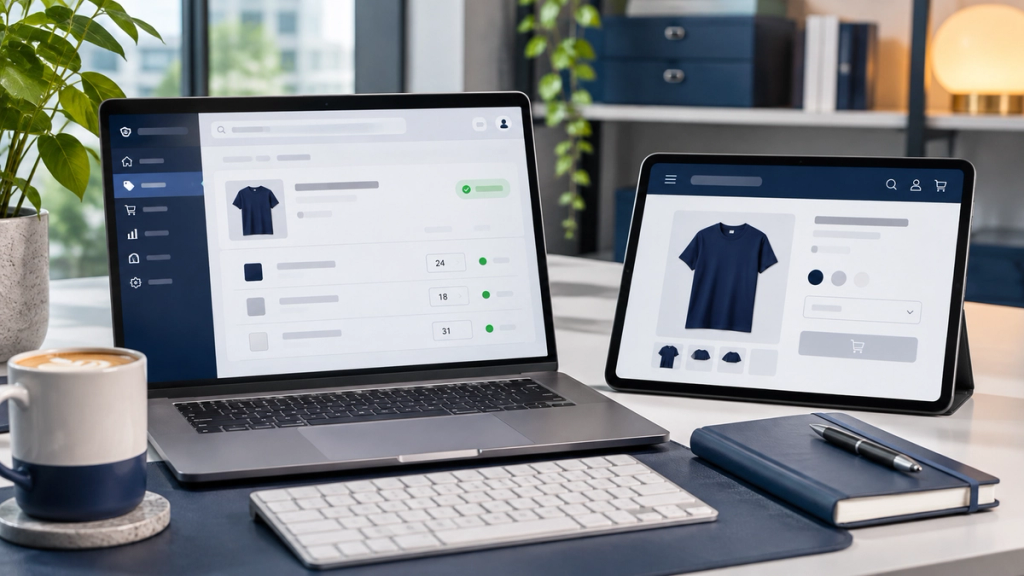
Your Shopify Admin shows 30 units available, but customers visiting your product page see a Sold Out button. Why?
Shopify products can show Sold Out despite recorded stock when the selected variant has no sellable inventory, stock belongs to an ineligible fulfilment location, shipping settings exclude the customer's destination, Shopify Markets restricts availability, an inventory integration changes quantities, or a theme displays the wrong status.
The first question is whether that exact variant can genuinely be fulfilled to the customer's location.
A Sold Out message isn't always a software error. Sometimes Shopify is correctly preventing an order that your business cannot deliver.
Here's how UK merchants can identify the cause without damaging their inventory records.
What Does Sold Out Actually Mean in Shopify?
Shopify distinguishes between stock physically held by a business and stock available for new orders.
Inventory state
What it means
On hand
Total units held at a location, including quantities already committed or unavailable
Available
Units currently available to sell
Committed
Units allocated to existing orders or other commitments
Unavailable
Stock reserved, damaged, under quality control or otherwise not sellable
Incoming
Expected stock not yet received and available
Fulfillable inventory
Stock at eligible locations able to serve the customer's shipping zone
Illustrative example: A retailer holds 40 jackets in its warehouse. Thirty-five are committed to existing orders and five are reserved for quality checks.
The retailer physically holds 40 jackets, but none are Available for new orders.
Even when Available inventory is positive, the product may remain unavailable to customers if its location cannot fulfil their delivery requirements.
Quick Shopify Sold Out Diagnostic Table
Storefront symptom
Check first
One size displays Sold Out
Selected variant inventory
Every variant displays Sold Out
Locations and fulfilment
Only overseas customers see Sold Out
Shipping zones and Markets
On hand is positive but Available is zero
Inventory states
Dropshipping products show Sold Out
Supplier location and shipping profile
Products changed after an app update
Inventory synchronisation
Admin shows stock but the button is wrong
Theme or product options app
Product cannot be found in a country
Publishing and market catalogues
These are starting points, not confirmed diagnoses.
1. Your On Hand Inventory Isn't Actually Available to Sell
One common misunderstanding is assuming that On hand inventory means customers can purchase every recorded unit.
Shopify separates stock into Available, Committed and Unavailable quantities. Incoming inventory is tracked separately.
A product can therefore show 25 units On hand while Available inventory is zero.
How to check
- Open Shopify Admin → Products → Inventory.
- Find the affected SKU or product variant.
- Review its quantities at each location.
- Compare Available, Committed, Unavailable and On hand.
- Investigate unexpected reservations or adjustments.
For example, a stock management app might reserve safety stock, or existing unfulfilled orders might account for the missing availability.
Safe correction: Reconcile the records against genuine orders, physical stock and legitimate reservations. Release unavailable stock only when it really is sellable.
Don't simply increase quantities to make the storefront display In Stock. That can create inaccurate records and orders the business cannot fulfil.
If quantities repeatedly change without explanation, investigate the system responsible for updating them.
2. The Selected Product Variant Has No Available Stock
Shopify manages inventory separately for individual product variants.
Consider a clothing retailer selling a jacket in three sizes:
- Small: 12 available
- Medium: 8 available
- Large: 0 available
If the product page automatically selects Large, customers may see Sold Out even though other sizes are available.
This is expected behaviour for that selected variant.
However, an incorrectly configured product options app or theme could also fail to update the purchase button after the customer selects an available size.
How to check
Open the product in Shopify Admin and examine the exact size or colour combination.
Then open its storefront page and switch between variants.
Confirm that the selected option, variant ID, displayed availability and Add to Cart button agree.
Safe correction: Correct genuinely inaccurate variant quantities or repair faulty option selection logic.
Avoid replacing variant IDs or recreating products without understanding existing inventory, integrations and order references.
If the button remains Sold Out after an available variant is selected, a developer may need to inspect the theme's variant handling.
3. Inventory Is Assigned to the Wrong or an Inactive Location
UK Shopify businesses often manage stock across physical shops, warehouses and third-party fulfilment providers.
Shopify tracks inventory independently at each location.
Suppose a business has 50 units recorded at its retail shop, but online orders are expected to ship from a separate warehouse with no stock.
Those 50 units do not automatically become available for online fulfilment.
Another possibility is that a variant has On hand stock at a location but isn't active for fulfilment there.
Shopify can display a dash instead of an Available quantity for such an inactive variant.
How to check
Review the product's inventory locations, identify where the stock physically exists and confirm where that exact variant is active.
Safe correction: Activate the variant at the correct location where appropriate, and reconcile quantities with the actual stock arrangement.
Do not randomly move inventory between locations or adjust warehouse balances.
These changes can affect fulfilment assignments, reporting and stock accuracy. Complex location migrations may require technical support.
4. The Stock Location Cannot Fulfil Online Orders
A Shopify location can exist and hold inventory without being eligible to fulfil online purchases.
This distinction matters for stores using Shopify POS alongside ecommerce.
For example, a retailer might reserve its showroom inventory for in-person customers while online orders ship from a central warehouse.
How to check
In Shopify Admin, open Settings → Locations and inspect the relevant location.
Review whether the location is active and whether Inventory at this location is available to fulfil online orders is enabled.
Also confirm that the affected variant is active for fulfilment there.
These are separate checks: the location itself must support online fulfilment, and the product must be assigned appropriately.
Safe correction: Enable online fulfilment only if staff or the fulfilment partner can genuinely dispatch orders from that location.
Making retail-only stock available online without an operational process may create missed orders.
If online orders are assigned to unexpected warehouses, review order routing and location configuration rather than changing stock blindly.
5. Shipping Profiles or Delivery Zones Don't Match the Stock Location
A product might have sellable stock but still be unavailable for the customer's delivery destination.
Shopify uses eligible fulfilment inventory and shipping configuration when determining customer-facing availability.
For example, a UK merchant has stock at a warehouse but hasn't configured the relevant shipping profile to serve customers in a particular delivery region.
That product may display Sold Out for affected customers.
How to check
Open Settings → Shipping and delivery.
For stores using shipping profiles, inspect:
- The profile containing the affected product
- Fulfilment locations and shipping origins
- Shipping zones covering the customer
- Available delivery rates and their conditions
- Locations listed as not fulfilling from the profile
Some stores use newer shipping options by market, so follow the shipping interface available in your account.
Safe correction: Configure the appropriate location, delivery zone and valid shipping rates only where your business genuinely offers delivery.
Shopify's fulfillable inventory behaviour is particularly important. For stores created in April 2024 or later, it is enabled by default and cannot be disabled.
Older eligible stores may have a legacy display setting, but showing a product as available does not guarantee checkout can deliver it.
See Shopify's fulfillable inventory guidance.
6. Shopify Markets or Customer Location Settings Affect Availability
A product available to a UK customer may be unavailable to someone browsing from France, Germany or another country.
This can result from market catalogues, product publishing, shipping destinations or location-specific fulfilment restrictions.
A UK merchant might intentionally sell only within the United Kingdom. In that case, products displaying Sold Out to visitors localised to an unsupported country can be expected behaviour.
How to check
In Shopify Admin, review Markets and confirm which countries are active.
On the Products page, use View as to inspect product availability in the relevant customer context.
Check whether the product belongs to the appropriate market catalogue and whether an eligible location can deliver there.
Also examine automatic localisation and country selection.
Safe correction: Update product publishing or delivery settings where international selling is intended.
Do not activate every country simply to eliminate Sold Out messages.
Importantly, a product excluded from a market catalogue may appear unpublished or inaccessible rather than showing a Sold Out button.
These symptoms require different investigations.
7. A Dropshipping or Third-Party Fulfilment App Is Misconfigured
Dropshipping, print-on-demand and fulfilment applications can manage inventory through their own Shopify locations.
A supplier reporting positive stock does not necessarily mean that Shopify can sell the item to your customers.
For example, an app-created location might contain inventory but have no shipping rates configured for the product's destination.
Other potential causes include disconnected supplier accounts, incorrect product mappings or missing location assignments.
How to check
Identify which application controls the product and its inventory.
Check its connection status, supplier availability, fulfilment location and shipping configuration.
For stores using shipping profiles, look for the app location under locations that aren't currently shipping. Shopify documents an Add rates process for relevant configurations.
Safe correction: Add suitable delivery rates after confirming the supplier's actual destinations and charges.
Do not delete app-managed locations or reinstall an integration without assessing active orders and inventory ownership.
If the app manages stock correctly but Shopify cannot fulfil the item, the problem may be configuration rather than supplier quantity.
8. Inventory Synchronisation Is Overwriting Correct Quantities
An ecommerce business may update Shopify stock from several systems:
- An ERP or warehouse management platform
- Supplier inventory feeds
- Inventory synchronisation apps
- Scheduled CSV imports
- Custom API integrations
If two systems control the same SKU or update different locations incorrectly, inventory may change unexpectedly.
For example, warehouse staff correct an available quantity to 20, but an automated feed later changes it back to zero.
How to check
Review Shopify's inventory adjustment history for the affected variant.
Look at when the quantity changed, which location was affected and whether a staff member, app or sales channel initiated the adjustment.
Compare SKU and variant mappings across connected systems.
Check recent imports, integration logs and scheduled jobs.
Safe correction: Identify the intended inventory source of truth before changing sync rules.
Avoid repeatedly correcting the same quantities manually when automation continues overwriting them.
For complex ERP integrations, duplicated stock sources or incorrect API mappings, development support may be necessary.
9. Your Shopify Theme or an App Displays Incorrect Availability
Sometimes Shopify's underlying product configuration is correct, but the storefront displays the wrong purchasing status.
Custom Liquid templates, outdated variant selector JavaScript, stock badge widgets and product option apps can introduce discrepancies.
For example, the customer selects an available Medium jacket, but the product button continues displaying the unavailable Large variant's status.
How to check
Compare the exact variant selected on the storefront with the corresponding Shopify Admin record.
Test the page in a fresh browser session and switch variants.
Observe whether prices, variant IDs and purchase button states update together.
Where practical, compare the behaviour using a safe unpublished theme preview.
Shopify developers can inspect the Liquid product.available and variant.available properties, along with the JavaScript controlling variant selection.
Safe correction: Repair the specific availability logic or app conflict after confirming that the stock and fulfilment configuration is valid.
Do not replace a published theme or remove production scripts without a tested rollback plan.
For complex theme problems, XCONS Solutions' Shopify Development services may be a relevant starting point.
What If a Shopify Product Is Unpublished Rather Than Sold Out?
Not every product availability problem is an inventory problem.
Shopify distinguishes between product status and publishing.
A Draft product isn't ready for sale. An Active product can be sold through an eligible published channel. An Unlisted product can remain purchasable through its direct URL while being hidden from normal discovery.
A product also needs appropriate Online Store publishing and market availability.
If customers cannot find the product, check publishing and catalogue settings before investigating quantities.
If they can see the product but cannot buy it, examine inventory, fulfilment, delivery and storefront behaviour.
How to Test Shopify Product Availability Safely
Use this sequence before making major changes.
- Record the product: Save its URL, SKU, selected variant and the customer's affected country.
- Inspect inventory states: Compare Available, On hand, Committed and Unavailable quantities.
- Review locations: Identify where the affected variant is stocked and active.
- Check online fulfilment: Confirm that the stocking location can dispatch online orders.
- Verify shipping: Inspect the applicable profile or market-based options, destination and rates.
- Review Shopify Markets: Check the intended customer's market and catalogue availability.
- Inspect integrations: Identify which apps or external systems manage stock and fulfilment.
- Test the storefront: Try the exact variant in a fresh browser session with the correct country selected.
- Compare theme behaviour: Use a safe preview if Shopify's underlying configuration appears correct.
- Retest purchasing: Confirm that the correct variant can be added to the cart and, where relevant, reaches an eligible checkout delivery option.
You normally don't need to place a live order or use real customer payment details.
Document the result before making further changes.
What If Every Shopify Product Suddenly Shows Sold Out?
When an entire catalogue becomes unavailable, investigate system-wide changes before editing individual products.
Start with recent app installations, inventory imports, fulfilment location changes, shipping profile updates and Shopify Markets configuration.
Then review stock synchronisation activity and any recently published theme changes.
A sudden problem affecting every product is more likely to involve shared configuration than dozens of independent stock shortages, although this must still be verified.
Preserve screenshots, configuration details and timestamps.
Avoid bulk inventory increases or disabling stock tracking as an emergency shortcut. These actions may hide the symptom while introducing inaccurate quantities or overselling.
Should You Enable Continue Selling When Out of Stock?
Shopify offers Continue selling when out of stock for tracked products or variants.
It can be useful for legitimate pre-orders, made-to-order products and planned backorders where fulfilment is understood.
However, it should not be the default response to incorrect Sold Out messages.
Enabling it may allow purchases without sufficient stock. It also does not necessarily resolve unsuitable delivery zones, market restrictions or broken theme logic.
Only use this setting where the business genuinely intends to accept orders beyond currently available inventory and can communicate fulfilment expectations accurately.
How to Prevent Incorrect Sold Out Messages
Prevention depends on maintaining accurate inventory and testing changes before they affect customers.
Reconcile physical stock against Shopify quantities regularly. Review location eligibility, shipping settings and inventory imports whenever warehouse arrangements change.
Monitor integration failures and unexpected stock adjustments.
Test selected high-demand products after theme updates, new app installations and changes to regional selling.
For businesses operating internationally, test real customer country contexts rather than relying only on a UK storefront preview.
The objective is accurate product availability, not forcing every item to show In Stock.
UK Shopify Inventory and Fulfilment Considerations
UK ecommerce businesses may have different delivery arrangements for mainland Great Britain, Northern Ireland, the Scottish Highlands and other destinations.
These restrictions depend on each merchant's carriers, products and fulfilment capabilities.
A retailer might hold stock in a London shop, a Midlands warehouse and a third-party fulfilment centre. Not every location necessarily dispatches to every destination.
Businesses selling into Europe must also consider their intended markets, product catalogues and shipping arrangements.
Dropshipping merchants should confirm that supplier delivery coverage matches the destinations offered through their Shopify store.
An accurate Sold Out message is preferable to accepting an order that cannot genuinely be fulfilled.
When Should You Hire a Shopify Developer?
Many availability problems can be resolved by checking Shopify's normal product, inventory and shipping settings.
Professional support becomes more relevant when custom Liquid code, complex product selectors, multiple fulfilment locations, repeated inventory overwrites or ERP integrations are involved.
The right specialist depends on the cause. Supplier stock shortages may require supplier support, while payment or platform incidents may require assistance from the relevant provider.
Incorrect product availability can also interrupt the purchasing journey, making it relevant to conversion rate optimisation once the underlying technical issue is identified.
Are Your Shopify Products Showing Sold Out When Stock Is Available?
Incorrect inventory assignments, fulfilment restrictions and storefront configuration problems can prevent customers from purchasing products your business expects to sell.
XCONS Solutions Ltd, a digital agency based in Ilford, East London, provides Shopify development and ecommerce configuration services for UK businesses.
Explore our Shopify Development services or contact XCONS Solutions to discuss your store's requirements.