

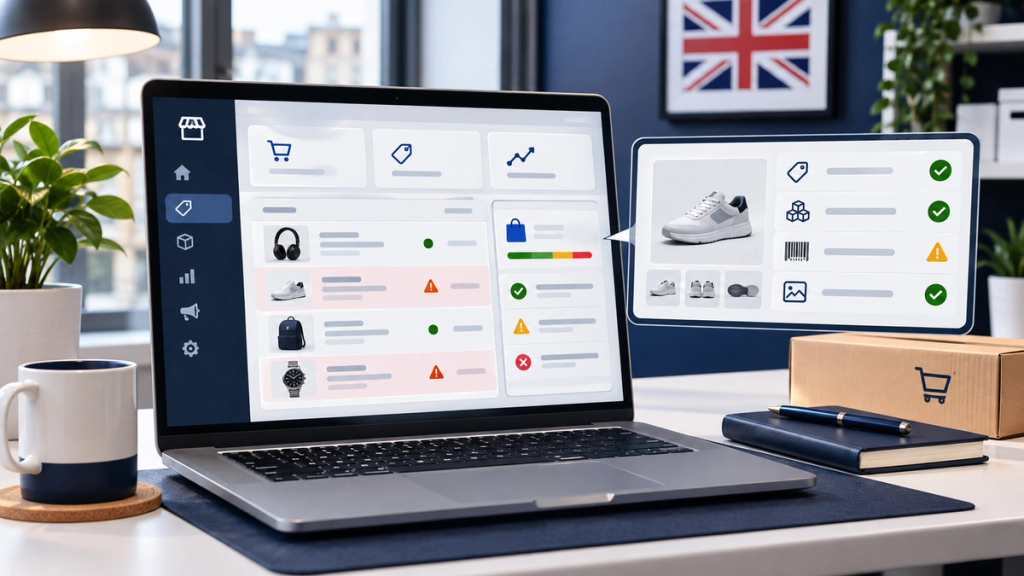
Your Shopify products are live, your store is accepting orders, and your Google & YouTube sales channel is connected. Yet some products are marked as disapproved in Google Merchant Center.
Shopify products are commonly disapproved because of inaccurate product data, price or stock mismatches, missing identifiers, inaccessible product pages or violations of Google's Shopping policies. Some problems affect individual products, while others can restrict your entire Merchant Center account.
Before changing anything, open Merchant Center and identify the exact issue affecting your products. The correct fix depends on whether Google has flagged a product attribute, your online store or an account-level policy requirement.
Why Does Google Merchant Center Disapprove Shopify Products?
Google Merchant Center uses product information from your store to determine which items can appear in Shopping ads, free listings and other eligible Google shopping experiences.
When you connect Shopify through the Google & YouTube sales channel, product information is synchronised with Merchant Center. Google then checks that information against its product data specifications, website requirements and advertising policies.
Problems generally fall into four categories:
- Product data errors: Required attributes are missing, invalid or inconsistent.
- Website mismatches: Your feed says one thing, but your product page or checkout shows something different.
- Policy violations: A product or business practice doesn't meet Google's rules.
- Account and setup issues: Business verification, customer information, delivery settings or other account requirements need attention.
These issues do not all have the same consequences.
Merchant Center status
What it means
What to do
Warning
A problem has been identified, but the affected product may still appear with restrictions
Investigate and correct the warning
Limited visibility or performance
The product may remain eligible for some placements but not others
Check the affected destination and missing information
Disapproved
The affected product cannot appear in the relevant Google listing destination
Fix the specific product issue
Pending review
Google is checking the product or submitted changes
Monitor its status rather than making unnecessary changes
Pre-emptive item disapproval
Google has restricted items because of concerns such as price or availability inconsistencies
Correct the underlying data and follow the required review process
Account suspension
A wider policy or compliance issue has restricted the account
Review account-level notices and resolve the underlying issue before appealing
Important: A product being active in Shopify does not mean it has been approved by Google. Similarly, a product that appears in organic search is not necessarily eligible for Shopping ads.
How to Find the Exact Product Disapproval Reason
The fastest way to approach a Merchant Center problem is to identify its cause before editing your entire catalogue.
Step 1: Check Merchant Center's Needs Attention Section
Sign in to Google Merchant Center.
- Open Products under Products & store.
- Select Needs attention.
- Review the high-impact issues and affected product list.
- Filter by issue, status or product title.
- Open the relevant issue to read Google's explanation.
- Download a CSV of affected products if you need to investigate a larger catalogue.
Also check for setup or policy notices near the top of the page. These may indicate account-wide problems rather than individual feed errors.
Google's official guide: Issues in Merchant Center.
Step 2: Inspect the Affected Product in Shopify
In Shopify, open Products and select the affected item.
Check its description, images, variants, inventory, price and sales-channel availability.
Where the interface provides a Google sales-channel error view, open it to see any additional synchronisation information.
Pay particular attention to whether the product is available to both your Online Store and Google & YouTube channels.
Step 3: Compare the Product Across Three Places
For a product showing a mismatch, compare:
Shopify admin → Live product page → Merchant Center product data
For example, an item might have a correct £49.00 price in Shopify but still show a previous promotional price in Merchant Center.
The reverse is also possible: the feed may have updated while the live website or structured data still displays an older value.
Do not simply overwrite the Merchant Center value without checking which system is supplying the information. Otherwise, the next synchronisation can recreate the problem.
10 Common Google Merchant Center Issues UK Shopify Stores Should Check
1. Product Prices Don't Match Your Shopify Store
Typical issue: Mismatched price or inaccurate price.
Google expects the product price submitted through Merchant Center to agree with the price customers see on the landing page and during checkout.
For example, your product feed might advertise a jacket for £65, while the live Shopify page displays £75 after a promotion ends.
Price mismatches may occur because of delayed synchronisation, sale-price settings, currency configurations or outdated structured data.
How to investigate and fix it:
- Compare the affected variant's price in Shopify and Merchant Center.
- Open the exact URL submitted to Google, including any variant parameters.
- Check the price visible on the page and the amount charged at checkout.
- Review sale dates, automatic discounts and currency settings.
- Ensure product structured data reflects the current active price.
- Correct the source information and allow the feed to synchronise again.
For UK-targeted product listings, check that GBP pricing is consistent and that the submitted product price follows Google's VAT-inclusive requirements.
If Google repeatedly finds discrepancies between prices and landing pages, the issue may develop into pre-emptive item disapproval rather than remaining an isolated product error.
Issue level: Product-level mismatch, potentially wider enforcement if repeated or systematic.
When to seek help: When prices appear correct in Shopify but Google continues to detect conflicting values, a technical investigation of your theme, product structured data and feed synchronisation may be necessary.
2. Product Availability Doesn't Match Your Actual Stock
Typical issue: Mismatched availability.
Imagine a customer clicks a Shopping listing advertising a dining table as available, only to reach a Shopify page marked out of stock.
Google checks whether availability information is consistent across your feed, product page and checkout.
Stock discrepancies can develop when inventory changes rapidly, several sales channels share stock or a product has multiple variants.
How to investigate and fix it:
- Check inventory for the exact SKU or variant.
- Confirm whether customers can actually purchase the item.
- Compare Shopify stock availability with the Merchant Center value.
- Review inventory synchronisation if you sell through several channels.
- Check any stock-related structured data or theme customisations.
- Correct the inventory status and resynchronise the product.
Google supports availability values such as in_stock, out_of_stock, preorder and backorder, subject to the applicable requirements.
Do not submit an item as in stock simply because you expect more inventory to arrive soon.
Issue level: Usually product-level, although persistent mismatches can trigger broader action.
When to seek help: If stock is managed by an external warehouse, ERP or inventory application and errors recur despite correct Shopify quantities.
3. GTIN, MPN or Brand Information Is Missing or Incorrect
Typical issue: Missing or invalid product identifiers.
Google uses product identifiers to understand which product you are selling.
The main identifiers include:
- GTIN (Global Trade Item Number): A recognised barcode identifier, such as an EAN.
- MPN (Manufacturer Part Number): An identifier assigned by the manufacturer.
- Brand: The product's actual brand or manufacturer.
A common problem occurs when retailers add an internal SKU where Google expects a valid GTIN.
These are not interchangeable identifiers.
For example, a UK electronics retailer might use HEADSET-BLK-01 as its inventory SKU. That code should not be presented as the manufacturer's GTIN unless it genuinely is a valid GTIN.
How to investigate and fix it:
- Find the affected product and variant in Shopify.
- Check its barcode field against the genuine product identifier.
- Correct missing or invalid GTINs where the product has one.
- Provide appropriate brand and MPN information where required.
- Review Google's rules for custom-made products and products without assigned identifiers.
For handmade or custom products, do not invent barcodes. Some products legitimately have no GTIN, and Google provides rules for identifying them correctly.
Missing identifiers can cause limited performance in some situations, while incorrect or required-but-missing identifiers may prevent products from being approved or synchronised.
Issue level: Product-level error or limited-visibility issue, depending on the specific requirement.
When to seek help: When a large catalogue contains unreliable barcode information, supplier data conflicts or repeated identifier errors.
4. Product Images Don't Meet Google's Requirements
Typical issue: Promotional overlay, missing image or invalid image link.
An attractive image for a Shopify homepage is not necessarily a compliant main product image for Google Shopping.
For example, a fashion retailer might use a product photograph with a large “50% OFF” banner. That creative may be suitable for certain website promotions, but Google generally does not allow promotional text overlays on submitted main product images.
Other problems include broken image URLs, unsupported file formats, placeholder images or images that don't accurately represent the product.
How to investigate and fix it:
- Open the exact image URL submitted to Merchant Center.
- Confirm it loads publicly without authentication.
- Remove promotional text, watermarks and added retailer logos.
- Replace generic placeholders with genuine product images.
- Ensure the image matches the advertised colour and variant.
- Check image dimensions and file format against current specifications.
If a product image is replaced but Google continues showing the old one, inspect caching and image URL updates rather than repeatedly changing unrelated product fields.
Issue level: Usually product-level.
When to seek help: If Shopify image URLs, feed image attributes or third-party image optimisation applications are causing recurring problems.
5. Delivery Costs or Shipping Settings Are Missing
Typical issue: Missing shipping costs or incomplete delivery settings.
Google needs accurate delivery information for products offered to customers in your target market.
A UK Shopify store might offer free delivery above a particular basket value, charge more for heavy items or use different delivery rates for Northern Ireland.
Those arrangements must be represented accurately in the applicable Merchant Center delivery settings or product data.
One especially important Shopify limitation is that automatic shipping imports do not support every Shopify shipping configuration. Custom shipping profiles, for example, can require manual Merchant Center configuration.
How to investigate and fix it:
- Review the delivery policy and shipping services in Merchant Center.
- Check the target country and delivery areas.
- Compare Google's rates with the actual Shopify checkout.
- Review free-delivery thresholds and product-specific charges.
- Inspect custom shipping profiles and any unsupported rate configurations.
- Configure rates manually in Merchant Center where automatic import is unsuitable.
Test realistic UK delivery addresses and baskets rather than relying on a single checkout example.
Issue level: Product eligibility or Merchant Center delivery configuration issue.
When to seek help: When multiple Shopify shipping profiles, fulfilment locations or calculated delivery rules are producing conflicting information.
6. Your Returns and Refund Policy Is Missing or Unclear
Typical issue: Missing return and refund policy.
Not every Merchant Center problem starts with the product feed.
Google also evaluates whether customers can understand the conditions of purchasing from your store.
A returns policy that's hidden, incomplete or inconsistent with your Merchant Center settings can create account-level compliance problems.
How to investigate and fix it:
- Create or review the store's returns and refund policy.
- Make the policy easy to find, such as through the website footer.
- Explain relevant conditions, procedures and timelines.
- Check that website information matches Merchant Center settings.
- Make sure customers can understand how to contact the business.
For UK retailers, Google policy requirements and consumer law should be considered separately.
Many UK online purchases come with statutory cancellation rights, although exceptions apply to certain products and circumstances. Your returns policy must reflect the rules relevant to your business.
Refer to GOV.UK guidance on returns and refunds for the legal framework.
Issue level: Primarily store or account-level compliance.
When to seek help: If Merchant Center continues to show a policy issue after your website and account information have been corrected.
7. Google Cannot Access Your Product Landing Page
Typical issue: Unavailable landing page or product page unavailable.
Even perfectly formatted product data is not enough if Google cannot access the page where a customer is expected to buy the item.
This can happen when a Shopify product is unpublished, hidden from the Online Store sales channel, redirected incorrectly or affected by a technical error.
Other possible causes include restrictive robots.txt rules, unavailable servers and security configurations that block Google's crawlers.
How to investigate and fix it:
- Open the exact submitted product URL in a private browser window.
- Check the page on mobile as well as desktop.
- Verify that the product is published to the required Shopify channels.
- Ensure the URL leads to the specific advertised product.
- Investigate redirects, server errors and access restrictions.
- Check that the page displays the actual product information and a functioning purchase journey.
A redirect from an unavailable product directly to your homepage is not automatically a suitable replacement. Google needs a relevant destination that represents the advertised item.
Issue level: Usually product-level, potentially affecting many products if caused by a site-wide configuration.
When to seek help: When pages work normally for customers but Merchant Center reports crawl errors, or when a theme, app or security service appears to block Google.
8. Product Variants Have Inconsistent Feed Attributes
Typical issue: Missing colour, size or variant information.
Variants can create complex feed problems because one Shopify product may represent many different purchasable options.
For example, a retailer selling trainers in five sizes and three colours needs Google to distinguish each applicable variant accurately.
Problems may occur when variant-level attributes are missing, item group identifiers are inconsistent or the submitted URL opens the wrong product option.
How to investigate and fix it:
- Review each affected variant rather than only the parent product.
- Check size, colour and other attributes required for the category.
- Ensure related variants use appropriate item grouping.
- Verify each variant's price, availability and landing-page selection.
- Check whether the submitted image represents the selected variant.
- Review any additional variant fields supported or required by the current product data specification.
The item_group_id attribute groups related product variants. Additional attributes help Google distinguish the individual offers.
Issue level: Product-level data or eligibility issue.
When to seek help: When a large apparel catalogue, custom variant application or feed integration generates inconsistent values across products.
9. Your Products Violate Google Shopping Policies
Typical issue: Unsupported Shopping content or a restricted-product policy violation.
Some products are prohibited from particular Google Shopping experiences, while others are allowed only under specific restrictions.
These policies can vary by country and listing destination.
For example, a retailer selling a regulated product should not assume that successful publication on Shopify automatically makes that item eligible for Google Shopping.
How to investigate and fix it:
- Open the exact policy issue in Merchant Center.
- Read the policy that applies to the product and target country.
- Check the product itself, its description and the landing page.
- Remove genuinely prohibited products from the relevant feed.
- Correct inaccurate claims or product attributes where permitted.
- Request a review only when the issue is resolved or you have a valid reason to dispute Google's finding.
Changing a prohibited product's wording merely to conceal what is being sold is not a legitimate solution.
Issue level: Can be product-level or account-level, depending on the policy and severity.
When to seek help: When there is uncertainty about a restricted product category or a policy notice affects an entire catalogue.
10. Google Flags Misrepresentation or Business Information Problems
Typical issue: Misrepresentation, insufficient contact information or related account policy concerns.
This is one of the most important categories to distinguish from ordinary feed errors.
An individual product might have valid identifiers, images and pricing, while the Merchant Center account still has a wider compliance issue.
Google expects merchants to represent their businesses and offers accurately.
Potential concerns include inconsistent business identities, misleading claims, unclear contact details, unavailable offers or missing essential information.
How to investigate and fix it:
- Review the exact Merchant Center policy notice.
- Confirm that your business name and contact details are accurate.
- Make your delivery, refund and privacy policies easy to find.
- Remove incomplete pages, placeholder content and broken links.
- Ensure checkout works securely and as described.
- Complete any outstanding verification requests.
- Review product claims for accuracy and consistency.
Do not assume that adding an address or changing a footer alone will resolve a misrepresentation decision. Google may evaluate several signals together.
Some severe policy violations can result in immediate suspension without a standard warning period.
Issue level: Generally account-level, although specific misleading products may also be affected.
When to seek help: When your account is suspended, the reported cause is unclear or a carefully corrected store still does not pass review.
How Shopify's Google & YouTube Channel Affects Product Data
Shopify's Google & YouTube channel connects your store with Google Merchant Center and synchronises product information.
That reduces the need to maintain a separate manual product feed, but it doesn't remove the merchant's responsibility for data quality.
The channel relies on information such as product descriptions, prices, inventory, images and identifiers. Additional Google-specific fields or settings may still be needed.
Three areas deserve particular attention.
Product Synchronisation
When you update a Shopify product, the change may need to synchronise and be processed before it appears correctly in Merchant Center.
A product that has been corrected in Shopify might therefore remain flagged temporarily.
Check the source data and synchronisation state before attempting unrelated fixes.
Google-Specific Product Fields
Shopify's ordinary product fields do not always cover every requirement for Google listings.
Depending on the product category, you may need additional identifiers, attributes or category information.
Fashion retailers, for example, should pay particular attention to variant attributes such as size and colour.
Multiple Product Data Sources
If you use the Google & YouTube channel alongside another feed application, make sure you understand which source is supplying each product and attribute.
Otherwise, you may find yourself correcting one data source while another continues submitting conflicting information.
If your Shopify store has complex integrations, Shopify development and technical configuration support can help address issues in the store setup itself.
The key principle is simple: fix information in the system that owns it, then confirm that Merchant Center receives the corrected value.
How to Request a Review After Fixing a Merchant Center Issue
Not every product correction requires the same review process.
For many product data problems, Google automatically rechecks affected products after updated information is submitted.
Policy decisions, pre-emptive item disapproval and account suspensions may require a formal review request.
Follow this process:
- Correct the underlying product data, landing page or account issue.
- Confirm the corrected information is live.
- Allow the relevant product data source to update.
- Return to Merchant Center and open Needs attention.
- Check whether the issue has cleared or remains under review.
- If a review option is available and applicable, follow Google's instructions.
Where Google offers a review, you may see options such as I fixed the issue or I disagree with the issue.
Use the first when you have corrected a genuine problem. Use the second only when you have a valid basis to contest the finding.
Google may require further verification or impose limits on repeated review requests. A suspended account can also enter a cool-down period during which another review cannot be requested.
Approval is not guaranteed, and processing times vary by issue.
For the current process, refer to Google's official review guidance.
How UK Shopify Stores Can Prevent Future Merchant Center Problems
Resolving a disapproval is useful. Preventing the same problem from returning is better.
A reliable process combines product data management, website quality checks and regular Merchant Center monitoring.
Check Product Data Before Publishing
Before launching new products, confirm that titles, descriptions, identifiers, prices, images and category-specific fields are complete.
Review the actual purchasable variants rather than assuming the parent product has everything required.
Keep Pricing and Stock Information Consistent
Make sure your Shopify store, Google product data and visible landing-page information agree.
This is particularly important during seasonal promotions and periods of frequent inventory changes.
For UK listings, verify the relevant GBP price and VAT treatment.
Review Delivery and Return Policies
Whenever your delivery options or refund terms change, check whether Merchant Center also needs updating.
Test checkout with realistic UK delivery scenarios, including any regions that have different fulfilment arrangements.
Monitor Merchant Center Regularly
Use the Needs attention area to identify new problems before they affect a large proportion of your catalogue.
Review account notices separately from individual product errors.
Where appropriate, Merchant Center's automatic product updates may help correct minor price or availability discrepancies. However, they should not replace accurate store data.
Audit Your Shopify Product Pages
Check that important product pages load correctly, display accurate information and use suitable structured data.
Google's merchant listing guidance explains how Product and Offer structured data can communicate information such as price and availability.
If your wider challenge is organic product visibility, a Shopify SEO audit may help identify page-level technical problems alongside your broader ecommerce search strategy.
For collection-page ranking problems specifically, see our separate guide to Shopify collection pages not ranking.
When Should You Get Professional Shopify or Google Shopping Support?
Many Merchant Center issues can be resolved by correcting an individual product field.
However, specialist help may be appropriate when:
- A large percentage of your products are disapproved.
- Price or inventory mismatches keep returning.
- Products are correctly configured in Shopify but remain inconsistent in Merchant Center.
- Custom shipping settings or multiple data sources are involved.
- A theme or third-party application is interfering with product information.
- A policy or account-level issue persists after the identified problems are corrected.
The first task should be to establish whether the problem comes from Shopify, the synchronised product data, the live website or Google Merchant Center account settings.
That distinction matters. A developer may be needed to fix a technical store issue, while a Google Ads specialist may be better suited to reviewing campaign-related product eligibility and account configuration.
Need a Clearer Picture of Your Shopify Store's Technical Issues?
XCONS Solutions Ltd is a UK digital agency based in Ilford, East London, offering Shopify development, ecommerce SEO and Google Ads services.
If product-feed problems are affecting your ability to promote your store, we can discuss the relevant website, Shopify configuration and marketing issues to determine what support makes sense.
Request a Free Website or SEO Audit or contact XCONS Solutions to explain your issue.
A technical diagnosis is the right starting point—not a promise of automatic Google approval.
Final Thoughts
If your Shopify products are disapproved in Google Merchant Center, the most effective response is to identify the exact issue and correct its underlying cause.
A missing GTIN needs a different solution from a shipping-policy problem. A broken product page requires different work from an account suspension.
For UK ecommerce stores, accurate product information, consistent pricing, reliable stock updates and clear customer-facing policies provide a stronger foundation for Shopping ads and free product listings.
Start with the Merchant Center diagnosis, check the relevant Shopify settings and verify what customers actually see on your website. Once the systems agree, monitor the results and address any remaining issues according to Google's guidance.