

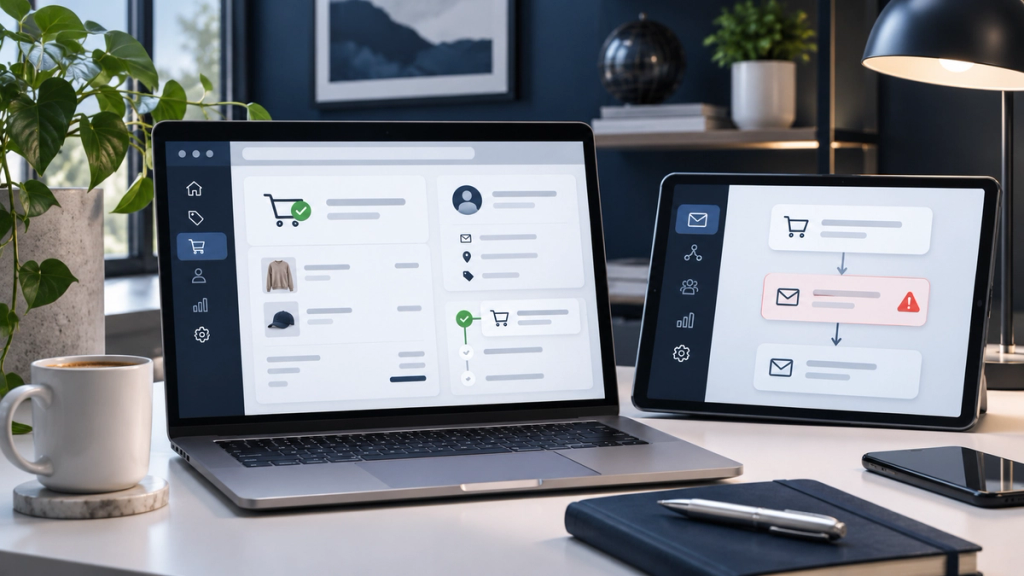
Your Shopify store is receiving checkout activity, but the Klaviyo emails you expected customers to receive are missing. Perhaps abandoned checkout reminders never arrive, post-purchase emails fail to trigger, or Klaviyo reports that recipients were skipped.
If your Klaviyo flow is not sending emails after Shopify checkout, first check whether the correct Shopify event reached Klaviyo. Then investigate the flow trigger, message status, filters, suppression rules and sending activity.
A missing event is different from a skipped email. And an email marked as sent can still encounter delivery problems.
This guide explains nine issues UK Shopify merchants should investigate, how to identify the cause and when technical support may be appropriate.
How Do Klaviyo Flows Work With Shopify Checkout Events?
Klaviyo uses customer activity from Shopify to trigger automated messages.
The process generally follows this sequence:
Customer action in Shopify → Klaviyo receives the event → Flow trigger → Eligibility checks → Time delay → Email send attempt
Three events are particularly important.
Checkout Started
Shopify's Checkout Started event records identifiable checkout activity and is commonly used to trigger abandoned checkout reminders.
A checkout is not necessarily abandoned when this event occurs. The customer may still complete their purchase.
That's why abandoned checkout flows normally include a delay and a filter that excludes people who subsequently place an order.
Added to Cart
Added to Cart can support an earlier cart-recovery flow.
For Shopify, this event requires the relevant behavioural tracking configuration. It should not be treated as interchangeable with Checkout Started.
A customer who adds a product to their basket but never reaches checkout may not generate a Checkout Started event.
Placed Order
Placed Order records a completed Shopify order.
It is commonly used for post-purchase marketing sequences, review requests and relevant customer follow-ups.
It is also important for preventing abandoned checkout reminders from reaching customers who have already bought.
Other events, including Fulfilled Order, can support workflows associated with order fulfilment.
Klaviyo's official Shopify data reference explains which metrics are synchronised and how they are recorded.
How to Find Out Why Your Klaviyo Flow Is Not Sending
Before changing your automation, identify where the process stops.
Start in Klaviyo with Analytics → Metrics. Filter by Shopify and check whether the expected Checkout Started or Placed Order events are appearing.
Next, open Flows, select the affected flow and inspect its trigger.
Review the individual email message's status, waiting recipients and performance information.
For skipped messages, select the email, open View details under Performance, then check Recipient activity → Skipped. The Type filter identifies recorded skip reasons.
Use this table to narrow your investigation.
What you see
What to investigate
No checkout event
Integration or tracking
Event recorded, no flow entry
Wrong trigger or entry restrictions
Recipient waiting
Time delay or scheduled send
Message in Draft or Manual
Message status
Recipient skipped
Filters, Smart Sending or suppression
Sending error
Template, catalogue, coupon or account issue
Message sent but not received
Bounce, authentication or inbox placement
A skipped message is not automatically a malfunction. For example, a correctly configured abandoned checkout flow should stop sending reminders when a customer completes their purchase.
9 Reasons Your Klaviyo Flow Is Not Sending Emails After Shopify Checkout
1. Your Shopify and Klaviyo Integration Is Not Synchronising Events
An automated email cannot begin if Klaviyo never receives the event that should trigger it.
This may happen when the Shopify integration is incomplete, disconnected, associated with the wrong store or experiencing synchronisation errors.
How to investigate:
- Open Integrations in Klaviyo.
- Locate the Shopify integration.
- Confirm it is connected and check for errors.
- Review recent Checkout Started and Placed Order activity under Analytics → Metrics.
- Compare the event activity with actual Shopify checkout and order records.
If several different Shopify metrics have stopped appearing at approximately the same time, investigate the integration before changing individual flows.
Shopify event data is normally synchronised with Klaviyo in near real time, but processing delays can occur.
Klaviyo also documents that unusually delayed events may no longer trigger some metric-based flows. This makes event timestamps useful when investigating missed messages.
Avoid: Disconnecting and reinstalling the integration without understanding the existing configuration. That may create additional complications.
When specialist help may be useful: If the integration appears connected but important event data remains missing across multiple flows.
2. Your Flow Uses the Wrong Trigger
A flow can be active and correctly configured for sending but still never receive the event you expect.
For example, a merchant may create an abandoned checkout reminder using Placed Order as its trigger.
That event represents a completed purchase, so it is unsuitable for identifying an abandoned checkout.
The appropriate trigger depends on the customer journey:
Automation
Typical trigger
Checkout abandonment
Checkout Started
Earlier cart abandonment
Added to Cart
Post-purchase follow-up
Placed Order
Fulfilment-related follow-up
Fulfilled Order
How to investigate:
Open the flow builder and click the trigger. Check the metric name and source integration.
If your business previously used another ecommerce platform, confirm the flow isn't still using a historical metric associated with the old store.
Klaviyo distinguishes metric-triggered flows from list-triggered and segment-triggered automations. Choosing the correct type is essential.
Avoid: Rebuilding an entire flow before confirming whether the selected trigger is the problem.
When specialist help may be useful: When several customer journeys overlap and the store needs separate cart abandonment, checkout abandonment and post-purchase automations.
3. Shopify Checkout Isn't Recording the Expected Customer Event
Even with a working integration, some checkout sessions may not produce a usable Checkout Started event.
Klaviyo needs Shopify to provide the relevant event and identifiable customer information.
For example, someone may browse your store, add a product to their basket and leave before providing an email address.
That person shouldn't automatically be expected to enter an email-based checkout recovery flow.
Klaviyo supports both Shopify one-page and multi-page checkout, but the point at which an event is recorded depends on checkout information becoming available. Custom checkout configurations can also affect event behaviour.
How to investigate:
Use a test email address that you control.
Visit an in-stock product page, add the item to your basket, proceed to checkout and enter your test email address.
Complete the necessary checkout progression for the event to be recorded, then leave the checkout unfinished.
After allowing time for synchronisation, search Klaviyo for your test profile and check its activity.
If the event isn't visible, inspect the Shopify integration configuration and any custom checkout applications.
Avoid: Assuming that every anonymous checkout visit should generate an email automation event.
When specialist help may be useful: If a customised checkout, third-party extension or customer-data integration is interfering with event tracking.
4. Your Klaviyo Flow Email Is Not Live
One of the simplest explanations for missing automated emails is the message status.
In Klaviyo, flow messages can have different sending states.
Draft: The message does not send or queue recipients for automatic delivery.
Manual: Recipients may be queued, but sending requires manual approval.
Live: The message can send automatically when the recipient meets the relevant conditions.
A flow may contain several messages with different statuses.
How to investigate:
Open the affected flow and inspect each email action individually.
Check whether the expected message is Live, Draft or Manual.
If the email is in Manual mode, review any recipients awaiting approval.
Before changing a message to Live, confirm that its content, filters, consent handling and sending schedule are correct.
Avoid: Assuming that activating a previously inactive message will automatically deliver every email missed in the past.
When specialist help may be useful: When an established flow contains several branches, conditional splits and messages with inconsistent states.
5. Flow Filters Are Excluding Customers
Klaviyo filters control who enters a flow and who remains eligible to receive its messages.
Different filters serve different purposes.
Trigger filters restrict which events qualify for entry.
Profile or flow filters evaluate characteristics or behaviour and can prevent messages from being sent.
Additional message filters apply to particular email actions.
Problems arise when these conditions become unnecessarily restrictive or contradictory.
For an abandoned checkout flow, however, an important filter is:
Placed Order zero times since starting this flow.
This is generally the intended configuration.
If someone begins checkout and then completes their purchase, the filter prevents further abandoned checkout reminders.
That is a successful outcome, not a failure.
How to investigate:
Check the flow trigger's filters and the additional filters on the affected message.
Review the exact skipped reason in Recipient activity.
If Klaviyo reports Fails Flow Filters or Fails Additional Filters, compare the customer's actual behaviour with the relevant conditions.
Also review restrictions that prevent profiles from re-entering a flow within a specified period.
Avoid: Removing purchase-exclusion filters merely to increase the number of emails sent.
When specialist help may be useful: When a flow contains several conditional splits or sophisticated customer segmentation rules.
6. The Customer Is Suppressed or Doesn't Meet Marketing Consent Requirements
A customer may appear in your Shopify records and still be ineligible to receive a Klaviyo marketing email.
Possible reasons include:
- The profile has no usable email address.
- The recipient has unsubscribed.
- The email address previously hard bounced.
- The profile is suppressed.
- Relevant marketing consent has not been established.
- The customer does not meet other sending requirements.
Email consent and suppression are not identical.
Consent concerns the permission or other lawful basis relevant to marketing.
Suppression concerns whether Klaviyo is preventing further messages to a profile.
In addition, Shopify's older Accepts Marketing property should not be treated as the definitive Klaviyo subscription indicator.
Klaviyo's current Shopify integration uses Shopify's subscription model, while profile-level email consent and suppression information must be checked separately.
How to investigate:
Open the affected customer profile in Klaviyo.
Review its email subscription and suppression details.
Compare the profile with the customer's Shopify marketing preferences and the evidence supporting any relevant marketing permission.
If the profile is suppressed, identify why before considering any change.
Avoid: Removing suppression or treating an abandoned checkout as automatic consent to receive marketing.
When specialist help may be useful: When consent data is synchronised between Shopify, Klaviyo and other customer management systems.
7. Smart Sending or Time Delays Are Preventing the Email
Klaviyo's Smart Sending helps prevent recipients from receiving too many marketing messages within a defined period.
The default Smart Sending window for email is 16 hours, although accounts can use different settings.
For example, a customer might receive a promotional campaign and then begin checkout shortly afterwards.
If the abandoned checkout email has Smart Sending enabled and falls within the relevant window, Klaviyo may skip it.
That does not mean the integration is broken.
Smart Sending skips are also not automatically rescheduled.
Time delays can cause different confusion. A customer who is still waiting for the configured delay has not necessarily experienced a failed send.
How to investigate:
Check the affected email's recipient activity.
If the skipped reason is Smart Sending, review recent marketing messages received by that profile.
Inspect the account's configured Smart Sending window and the setting on the individual flow message.
Also review any Time Delay actions or scheduled sending restrictions.
Avoid: Disabling Smart Sending across every automation without considering message frequency and customer experience.
When specialist help may be useful: When email campaigns, checkout flows and post-purchase automations frequently overlap.
8. Your Email Has a Template, Coupon, Catalogue or Sending Error
Sometimes a customer enters the flow correctly and passes eligibility filters, but Klaviyo cannot prepare or send the actual message.
Klaviyo documents specific skipped reasons, including:
- Email Syntax Error.
- Catalog Item Unavailable.
- Invalid From Email.
- Error Retrieving External Data.
- Unable to Create Coupon.
- Coupon Doesn't Exist.
- Over Email Limit.
- Unable to Send Email.
These are not all Shopify integration problems.
For example, an abandoned checkout email may contain a dynamic product block that cannot retrieve the necessary product information.
Alternatively, a post-purchase email might reference an invalid coupon.
How to investigate:
Open the affected message's Recipient activity and identify the recorded skip reason.
If it concerns a template, preview the email using representative event data.
If it concerns a catalogue item or coupon, review the relevant dependency.
Check the sender information and applicable account limits where necessary.
Make a controlled correction and test the message again.
Avoid: Changing checkout triggers when the recorded problem is clearly an email rendering or sending error.
When specialist help may be useful: When automated emails depend on complex product catalogues, personalised templates or dynamically generated offers.
9. Klaviyo Sent the Email, but It Wasn't Successfully Delivered
A Klaviyo flow can execute as expected while the recipient still reports that no email arrived.
The first question is whether Klaviyo attempted to send the message.
If it did, the next investigation concerns email delivery.
Potential problems include:
- Hard or soft bounces.
- Mail server rejection.
- Spam filtering.
- Sender reputation.
- Email authentication.
- Recipient-level filtering rules.
- Incorrect or outdated email addresses.
Email authentication commonly involves SPF, DKIM and DMARC.
SPF helps establish authorised sending infrastructure. DKIM provides cryptographic message authentication. DMARC helps domain owners define policies for authentication alignment.
Klaviyo supports shared and branded sending domains. On shared infrastructure, necessary SPF and DKIM arrangements are already provided. A branded sending domain uses account-specific DNS configuration, including records generated through Klaviyo.
You should therefore not assume that adding arbitrary SPF records will fix a delivery problem.
How to investigate:
Start with the message activity in Klaviyo.
Check whether it was sent, bounced or otherwise rejected.
Review your branded sending domain's verification status, if applicable.
Check whether the intended receiving address has inbox rules or spam filtering.
For wider deliverability problems, review domain reputation and authentication with the relevant email administrator.
For related guidance, see XCONS's article on why business emails go to spam.
Avoid: Treating an inbox-placement problem as evidence that the checkout flow never triggered.
When specialist help may be useful: When sending-domain configuration or authentication problems affect multiple automated campaigns.
How to Test a Klaviyo Checkout Flow Without Disrupting Customers
Once you have identified a likely cause, test the corrected configuration before making wider production changes.
A controlled testing process should include the following steps.
- Document the existing flow. Record its trigger, filters, delays and message status.
- Create or select a test customer profile. Use an email address you control and ensure its consent and suppression status is appropriate for the intended test.
- Confirm the Shopify integration. Check that Klaviyo is connected to the correct store and receiving current events.
- Generate the appropriate event. Start checkout for an abandoned checkout test, or use Shopify's supported test-order procedures for post-purchase workflows.
- Check Klaviyo metrics. Confirm the expected Checkout Started or Placed Order event appears on the test profile.
- Review flow entry. Check whether the profile entered the correct flow.
- Inspect the message state. Determine whether it is waiting, skipped, queued for manual review or successfully sent.
- Check the recipient inbox. If the message was sent, confirm whether it was received and where it was placed.
- Retest after changes. Repeat the process with a fresh, controlled scenario.
Do not use real customer information for testing or activate unverified automations for an entire customer list.
Also check whether Shopify's native abandoned checkout reminders are enabled. If you're replacing them with Klaviyo, ensure customers won't receive duplicate messages from both systems.
One successful test demonstrates that the particular scenario worked. It does not prove that all profiles meet the same filters, consent requirements or delivery conditions.
How to Prevent Klaviyo Flow Failures in the Future
Reliable email automation requires occasional monitoring, particularly after changes to Shopify checkout, customer data or marketing systems.
A practical maintenance routine should include checking whether recent Shopify checkout and order events are reaching Klaviyo.
Review flow alerts and unusually large changes in message activity.
Investigate skipped-message reports by reason rather than treating all skips as failures.
After significant Shopify configuration changes, test checkout recovery and post-purchase journeys using controlled accounts.
Review flow filters, Smart Sending settings and overlapping automations to make sure they continue to reflect your intended customer journey.
If your emails use dynamic product recommendations or coupons, periodically verify that those dependencies still work.
Finally, check marketing subscription and suppression data, sending-domain authentication and relevant deliverability metrics.
The goal is not to eliminate every skipped email. It is to ensure that eligible customers receive the right communications while ineligible customers are correctly excluded.
Can UK Shopify Stores Send Abandoned Checkout Emails Without Explicit Consent?
Not automatically. A customer entering their email address during Shopify checkout does not, by itself, establish permission for every type of marketing email.
For unsolicited email marketing to individual subscribers, the UK's Privacy and Electronic Communications Regulations (PECR) generally require consent or a valid exception.
One potential exception is the products and services soft opt-in.
Under the Information Commissioner's Office (ICO) guidance, this may apply where all the relevant conditions are met:
- The business obtained the person's contact details directly.
- The details were collected during a sale or genuine negotiations for a sale.
- Marketing concerns the business's own similar products or services.
- The person was offered a clear opportunity to opt out when their details were collected.
- Every subsequent marketing message provides another straightforward opt-out opportunity.
A completed purchase is not always necessary for genuine sales negotiations, but simply browsing a website is not enough.
Whether a particular abandoned checkout qualifies depends on what the person did, how their details were obtained and the actual opt-out arrangements.
This should not be confused with genuinely transactional communications, such as necessary order confirmations.
A promotional abandoned checkout reminder should not automatically be classified as transactional merely because it relates to a basket.
UK GDPR requirements also apply to the processing of personal information.
For detailed guidance, refer to the ICO's guidance on electronic mail marketing.
Where the legal position is uncertain, obtain appropriate data-protection advice before enabling the relevant flow.
When Should You Get Professional Klaviyo Automation Support?
Many individual flow problems can be diagnosed by checking a customer's event activity and the corresponding skipped reason.
However, a more detailed technical investigation may be appropriate when:
- Shopify checkout events are missing across many customers.
- Several flows depend on the same unreliable integration.
- Custom checkout behaviour interferes with customer tracking.
- Marketing consent does not synchronise correctly.
- Flows contain overlapping triggers and complex segmentation.
- Dynamic data failures recur across multiple emails.
- Sending-domain or authentication issues affect an entire account.
A Shopify developer may be needed for checkout or integration problems.
A marketing automation specialist can help review flow architecture, sequencing and filters.
Email infrastructure expertise may be required for authentication or widespread deliverability problems.
Before requesting support, gather the affected flow names, example event timestamps, relevant skipped reasons and information about recent store changes.
Shopify Email Marketing Automation Support for UK Businesses
A reliable automation system should connect customer activity, accurate data and appropriate communications.
When those elements don't work together, it becomes difficult to know whether a customer should have received a message or why a particular email was not sent.
XCONS Solutions Ltd, based in Ilford, East London, supports UK businesses through ecommerce development, CRM integration and marketing automation services.
Our Sales Funnels & Marketing Automation services focus on connected customer journeys and automated communications.
We also provide Shopify development services for stores requiring technical configuration and integration work.
Are Your Shopify Email Automations Working as Intended?
If checkout events, customer information or automated email sequences aren't behaving as expected, XCONS Solutions can discuss your current setup and relevant technical requirements.
Contact XCONS Solutions to explore the available ecommerce and marketing automation support options.
Final Thoughts
If your Klaviyo flow is not sending emails after Shopify checkout, start with the evidence rather than rebuilding the automation.
Confirm that Shopify recorded the correct event, check whether Klaviyo received it and follow the affected customer through the flow.
A missing trigger needs a different fix from a filter-based skip. A suppressed profile needs a different response from an invalid coupon or a bounced email.
For UK Shopify stores, reliable automation also depends on accurate subscription data and appropriate marketing permissions.
By understanding where the process stops, you can correct the underlying issue and maintain a more dependable customer communication system.