

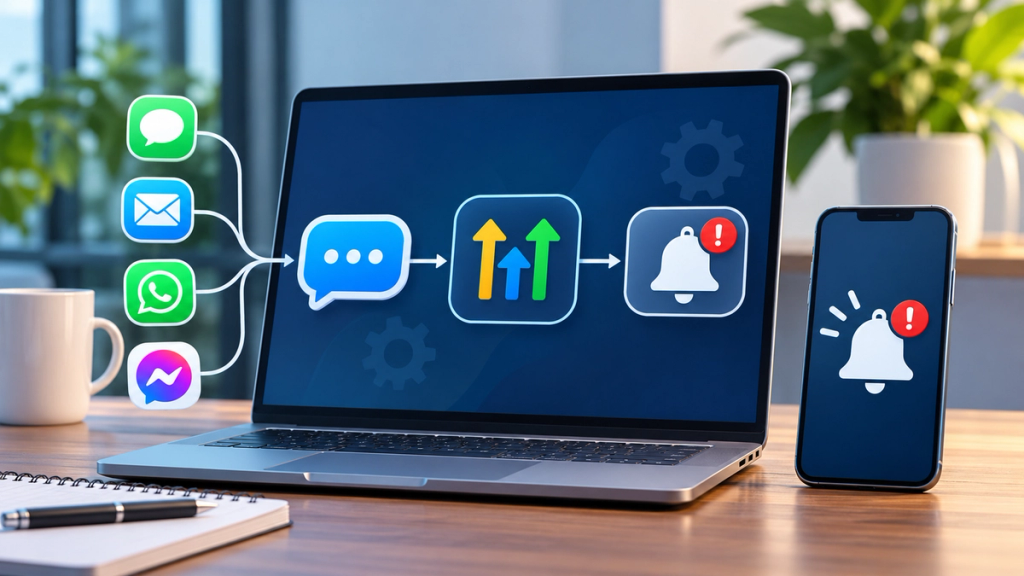
GoHighLevel Customer Reply Notifications Not Working?
A potential customer replies to your quotation SMS asking to book an appointment. Their message appears inside GoHighLevel Conversations, but your salesperson receives no notification. By the time someone checks the inbox, the customer may have already contacted a competitor.
GoHighLevel customer reply notifications may not work because of incorrect workflow triggers, restrictive reply channel filters, unpublished workflows, enrollment restrictions, missing assigned users, misconfigured Internal Notification actions or messaging integration problems.
The first step is to confirm whether HighLevel received the customer's reply and whether the expected workflow executed.
Understanding where the communication process breaks down can help your business restore reliable notifications, improve lead management and prevent valuable customer enquiries from going unnoticed.
How Do GoHighLevel Customer Reply Notifications Work?
GoHighLevel uses several connected features to identify customer responses, activate workflows and notify the appropriate team members.
The Customer Replied trigger detects eligible customer responses, while the Internal Notification action generates alerts for selected staff members.
A typical customer reply notification process works as follows:
- A customer replies through SMS, email, WhatsApp or another supported messaging channel.
- HighLevel receives and records the incoming message.
- The Customer Replied trigger evaluates the configured conditions.
- The eligible contact enters the workflow.
- The Internal Notification action executes.
- The intended staff member receives the notification.
- The responsible employee responds to the customer.
A failure at any stage can prevent the intended salesperson from receiving the alert.
| Component | Purpose | Potential Problem |
|---|---|---|
| Messaging integration | Receives incoming messages | Customer reply never reaches HighLevel |
| Customer Replied trigger | Detects eligible customer responses | Incorrect trigger or filters |
| Workflow enrollment | Determines contact eligibility | Re-entry restrictions |
| Internal Notification | Generates staff alerts | Action skipped or failed |
| Contact assignment | Identifies the responsible employee | Missing or incorrect owner |
| Delivery channel | Delivers the notification | Email, SMS or app delivery problems |
| Notification preferences | Controls supported personal alerts | Relevant notifications disabled |
It is also important to understand that built-in HighLevel conversation notifications and workflow-based Internal Notifications are separate features.
Configuring personal notification preferences does not automatically resolve a misconfigured notification workflow.
What Should You Check First When GoHighLevel Customer Reply Notifications Stop Working?
Before rebuilding your automation, establish exactly what happened to the affected customer message.
- Open the affected contact in Conversations.
- Confirm that the incoming customer message appears.
- Identify the actual reply channel.
- Record the approximate message timestamp.
- Locate the expected notification workflow.
- Confirm that the workflow is published.
- Review the contact's Enrollment History.
- Inspect the workflow's Execution Logs.
- Check whether the Internal Notification action executed or was skipped.
- Confirm the intended recipient.
- Verify the recipient's email address or telephone number.
- Perform a controlled test using an authorised test contact.
If the customer's reply is missing from Conversations, investigate the messaging integration first.
If the reply appears but no workflow enrollment exists, investigate the trigger and enrollment settings.
If the workflow executes but no notification arrives, focus on the notification action, recipient configuration and delivery channel.
1. The Wrong GoHighLevel Reply Trigger Is Selected
GoHighLevel provides different workflow triggers for different communication events. Selecting the wrong trigger can prevent an otherwise correctly configured workflow from responding to customer messages.
Three triggers are particularly relevant when troubleshooting customer reply notifications.
| Workflow Trigger | Intended Purpose |
|---|---|
| Customer Replied | Detects eligible incoming customer responses |
| User Replied | Detects qualifying messages sent by staff members |
| Inbound Email | Handles supported incoming email scenarios, including new enquiries |
For example, a UK plumbing company wants to notify its office manager whenever a potential customer responds to a quotation.
If the workflow uses User Replied instead of Customer Replied, the automation monitors staff responses rather than the intended customer activity.
How to Fix the Wrong Reply Trigger
- Open the relevant HighLevel sub-account.
- Navigate to Automations.
- Open the customer notification workflow.
- Review the selected workflow trigger.
- Select Customer Replied if the requirement is to detect eligible customer responses.
- Configure the appropriate filters.
- Save and publish the workflow.
- Test using an external customer response.
Manually adding a contact to the workflow may demonstrate that subsequent actions work, but it does not prove that the Customer Replied trigger functions correctly.
Review the official HighLevel Customer Replied trigger documentation for supported configuration options.
2. Reply Channel or Trigger Filters Are Excluding Customer Messages
A published workflow may be technically functional but still ignore particular customer replies because they do not satisfy its configured trigger filters.
Common Customer Replied filters include:
| Trigger Filter | Function |
|---|---|
| Reply Channel | Determines which communication channels qualify |
| Contains Phrase | Checks whether a message contains specified wording |
| Exact Match Phrase | Checks whether a response matches specified wording |
| Has Tag | Requires the contact to have a particular tag |
| Doesn't Have Tag | Excludes contacts with specified tags |
| Intent Type | Filters responses according to detected customer intent |
| Replied to Workflow | Checks whether a response relates to a selected workflow |
Example: WhatsApp Replies Are Not Triggering SMS Workflows
A customer receives a quotation through SMS but subsequently contacts the business through WhatsApp.
The incoming WhatsApp message appears inside Conversations, but the notification workflow only accepts SMS replies.
In this situation, the workflow may be operating according to its configuration rather than experiencing a technical fault.
Similar problems can occur when a workflow expects a specific phrase, such as “Book appointment”, but the customer replies with “Can someone call me tomorrow?”
How to Fix Incorrect Reply Channel Filters
Review the actual customer message against every configured trigger condition.
Ensure the selected reply channels match how your customers communicate. Check whether contact tags, phrase matching or workflow-specific restrictions are unnecessarily excluding legitimate enquiries.
For businesses using All-in-One Chat, review the relevant chat type and widget configuration where applicable.
Avoid removing every filter without understanding its purpose. Some filters may intentionally prevent irrelevant messages from generating sales notifications.
Test each supported communication channel separately to confirm that appropriate customer replies activate the workflow.
3. The Workflow Is Still in Draft or Has Publishing Errors
Saving a GoHighLevel workflow does not necessarily mean that it is operational.
A CRM administrator may configure a notification workflow, complete the required actions and assume that the automation is ready to receive customer replies.
However, the intended workflow could still be unpublished.
Other possible problems include:
- Unsaved workflow changes.
- Incomplete notification actions.
- Configuration or validation errors.
- Changes made to the wrong workflow.
- Editing a workflow inside the wrong sub-account.
- Testing an outdated configuration.
How to Fix an Unpublished GoHighLevel Workflow
Open the relevant sub-account and locate the automation responsible for customer reply notifications.
Check the workflow's publication status and resolve any displayed configuration errors.
Confirm that the saved configuration contains the intended Customer Replied trigger, appropriate filters and Internal Notification action.
Publish the workflow and generate a new customer reply from an authorised test contact.
Review the Execution Logs to confirm whether the new reply activated the automation.
Publishing a workflow will not automatically resolve unrelated email routing, SMS delivery or recipient configuration problems.
4. Workflow Re-entry or Enrollment Settings Prevent a New Run
A common troubleshooting scenario occurs when a notification workflow works during the first test but does not activate again when the same contact sends another reply.
The problem may relate to workflow enrollment history.
HighLevel's Allow Re-entry setting determines whether eligible contacts can return to a workflow after completing or leaving it.
A contact already active inside a standard contact-based workflow generally cannot start another concurrent run of that same workflow. Appointment-based and opportunity-based workflows may behave differently.
How to Investigate Workflow Enrollment Problems
Review the following areas:
- Whether Allow Re-entry is enabled.
- Whether the contact has previously completed the workflow.
- Whether the contact remains enrolled.
- Whether a Wait action is delaying workflow completion.
- Whether another automation removed the contact.
- Whether repeated tests are using the same contact.
Open the workflow's Enrollment History and compare previous executions with its current settings.
Should You Enable Allow Re-entry?
For workflows designed to notify employees whenever customers send eligible replies, allowing re-entry may be appropriate.
However, enabling it without reviewing the complete workflow could generate duplicate notifications, repeat customer communications or create unnecessary tasks.
Where possible, separate recurring reply notifications from more complex appointment booking and sales pipeline automations.
Test the workflow using both a new authorised contact and a previously enrolled contact.
5. The Contact Has No Assigned User or the Wrong Person Is Selected
Incorrect contact ownership is an important potential cause of GoHighLevel assigned user notifications not working.
Not every HighLevel contact automatically has an assigned owner.
If an Internal Notification action targets Assigned User but the contact has no assigned employee, the workflow may be unable to resolve the intended recipient.
The notification action may consequently be skipped.
Other ownership-related problems include:
- The contact is assigned to the wrong salesperson.
- Contact ownership recently changed.
- User assignment takes place after the notification action.
- The notification targets a particular employee instead of the assigned owner.
- The selected employee belongs to an inappropriate team or sub-account.
How to Fix Assigned User Notifications
First, open the affected customer's contact record and confirm the assigned user.
Next, review the Internal Notification action and identify whether it targets Assigned User, Particular Users or another available recipient option.
If your workflow automatically assigns incoming leads, ensure the necessary assignment occurs before the Internal Notification action.
A suitable workflow structure may include:
- Customer Replied trigger.
- Check contact ownership.
- Assign an appropriate user if necessary.
- Execute the Internal Notification action.
- Create a follow-up task where appropriate.
For unassigned contacts, consider establishing a fallback notification route to an authorised sales manager or designated team.
Avoid automatically changing existing contact ownership whenever a customer replies. Doing so could disrupt established customer relationships.
6. The GoHighLevel Internal Notification Action Is Misconfigured or Skipped
A workflow can activate successfully without completing its intended notification action.
The contact may enter the workflow but follow a conditional branch that bypasses the notification. Alternatively, the action may encounter an invalid recipient or missing information.
GoHighLevel supports Internal Notifications through email, SMS, in-app alerts and WhatsApp, subject to the relevant configuration and channel requirements.
Why Internal Notifications May Be Skipped
Possible reasons include:
- Missing notification recipients.
- Incorrect recipient configuration.
- Missing assigned users.
- Incorrect If/Else conditions.
- Unavailable contact context.
- Incorrect notification channel.
- Incomplete notification configuration.
- Workflow execution errors.
How to Diagnose a Skipped Internal Notification
Open the relevant workflow's Execution Logs and locate the affected contact.
Inspect the Internal Notification action and determine whether it was reached, executed, skipped or failed.
If the action was never reached, investigate the workflow path.
If the action was skipped or failed, review the available execution details and correct the relevant configuration.
If the action executed, investigate notification delivery and recipient settings.
Remember that sending an SMS to a customer is different from sending an internal SMS notification to a staff member. Selecting the wrong workflow action may generate unintended customer communications.
For further configuration guidance, refer to the official HighLevel Internal Notification documentation.
7. Notification Delivery Details or User Preferences Are Incorrect
Sometimes the Internal Notification action executes, but the intended staff member does not receive the expected alert.
In these situations, repeatedly changing the Customer Replied trigger may not resolve the problem.
Instead, investigate the actual notification delivery mechanism.
Potential delivery problems include:
- Incorrect staff email addresses.
- Missing or outdated telephone numbers.
- Email spam filtering.
- Disabled mobile application notifications.
- Incorrect personal notification preferences.
- Channel-specific delivery restrictions.
- Messaging provider problems.
Built-in Notifications vs Workflow Notifications
HighLevel allows individual users to manage personal notification preferences for supported account activity.
Each employee should review their own notification settings and device permissions where relevant.
However, built-in conversation notifications should not be confused with separately configured workflow-based Internal Notifications.
A missing mobile notification does not automatically mean that the Customer Replied workflow failed.
Similarly, an unsuccessful email notification does not necessarily indicate that SMS notifications will also fail.
How to Fix Notification Delivery Problems
Verify the recipient's contact details and test the selected notification channel.
For email alerts, inspect spam folders and organisational email filtering.
For mobile alerts, confirm that the intended user has the appropriate application permissions and is accessing the correct account.
For important customer enquiries, consider a secondary notification channel or follow-up task.
Avoid sending every customer reply to every employee. Notification systems should support clear ownership rather than creating unnecessary distractions.
8. The Inbound Customer Reply Is Not Being Captured Correctly
Before investigating workflow triggers, establish whether the incoming customer message actually reached HighLevel.
A Customer Replied workflow cannot respond to a message that the platform has not received or recognised as an eligible event.
Different communication channels require different troubleshooting approaches.
| Communication Channel | What to Investigate |
|---|---|
| SMS | Connected number, incoming messages and messaging provider |
| Connected mailbox, reply routing and reply-to settings | |
| Connected account, supported messages and integration settings | |
| Connected business page and messaging permissions | |
| Account connection and supported direct messages | |
| Live Chat | Active widget and chat configuration |
GoHighLevel Inbound SMS Problems
Confirm that the customer replied to the correct connected telephone number.
Check whether the message appears inside Conversations.
Telephone call forwarding should not be confused with automatic SMS forwarding. Forwarding incoming calls to a business owner's mobile number does not necessarily forward incoming text messages.
A separate Internal Notification workflow may be required to generate staff SMS alerts.
GoHighLevel Incoming Email Problems
Investigate whether the customer's email response reached the configured mailbox and whether the active email integration captured it.
Review reply-to addresses, mailbox connections and relevant email routing settings.
Avoid changing DNS or email records until the actual integration problem has been identified.
WhatsApp, Facebook, Instagram and Live Chat Problems
Compare incoming messages on the original communication platform with the corresponding HighLevel conversation.
Confirm the relevant integration remains connected and that the workflow accepts the actual message channel.
If customer messages never reach HighLevel, resolving the integration problem should take priority over modifying workflow triggers.
For businesses managing multiple communication platforms, our GHL CRM integration guide explains the broader role of connected CRM systems.
9. Execution Errors or Overlapping Workflows Are Preventing Reliable Alerts
Complex GoHighLevel accounts often contain multiple workflows affecting the same customer records.
One workflow may assign a salesperson, another may update an opportunity, and another may manage customer follow-ups.
These overlapping automations can produce unexpected notification behaviour.
Common areas to investigate include:
- If/Else branches.
- Wait actions.
- Contact tags.
- Opportunity conditions.
- Contact ownership changes.
- Remove from Workflow actions.
- Workflow execution errors.
- Dependencies between multiple automations.
For example, a customer may enter a notification workflow, but another automation changes their assigned owner before the Internal Notification action executes.
The resulting alert could be delivered to an unexpected employee.
How to Fix Conflicting GoHighLevel Workflows
Review the affected contact's complete automation timeline.
Identify which workflow changed the contact's state and determine whether that change affected the expected notification.
Review the relevant conditions, branches and execution timestamps.
Make one controlled change at a time and test the outcome.
Avoid disabling multiple production workflows simultaneously because doing so could interrupt legitimate appointment confirmations, customer communications and lead routing.
If your issue is that automated messages continue after a customer responds, read our separate guide on GoHighLevel Stop on Response not working.
That problem requires a different troubleshooting approach from missing internal staff notifications.
How to Use GoHighLevel Execution Logs to Find the Actual Problem
Enrollment History and Execution Logs are particularly useful when identifying customer reply notification failures.
Enrollment History helps establish whether the contact entered the workflow, while Execution Logs provide information about individual workflow actions and their outcomes.
Navigate to Automations, select the relevant workflow and inspect its available execution history.
Match the affected customer and reply timestamp to the corresponding workflow run.
| Evidence | What to Investigate Next |
|---|---|
| Reply missing from Conversations | Messaging integration and inbound routing |
| Reply visible but no enrollment | Trigger filters and enrollment eligibility |
| Workflow runs but notification skipped | Recipient configuration and action conditions |
| Internal Notification failed | Recorded execution error and configuration |
| Notification executed but email missing | Email delivery and recipient settings |
| SMS notification missing | Telephone number and messaging delivery |
| Notification received by wrong employee | Contact assignment and recipient selection |
| Notification received but customer ignored | Sales ownership and follow-up processes |
These findings provide investigation directions rather than guaranteed diagnoses.
When contacting technical support, collect the relevant workflow name, communication channel, approximate timestamp and recorded error.
Avoid publicly sharing customer telephone numbers, private conversations or API credentials.
How to Test the GoHighLevel Customer Replied Trigger Properly
Testing should reproduce the actual customer interaction rather than relying exclusively on manual workflow enrollment.
Follow these steps:
- Create or select an authorised test contact.
- Confirm that the workflow is published.
- Select the appropriate Reply Channel filter.
- Check whether other filters exclude the test contact.
- Review enrollment and re-entry settings.
- Confirm the assigned user where relevant.
- Send an outbound test message.
- Reply from the external test contact.
- Confirm that the reply appears inside Conversations.
- Review the contact's Enrollment History.
- Inspect the workflow's Execution Logs.
- Confirm whether the Internal Notification action executed.
- Verify that the intended employee received the notification.
- Document the test outcome.
A temporary diagnostic tag can also help determine whether an early workflow action was reached.
For example, applying a test-specific tag immediately after the trigger may help distinguish workflow activation problems from notification delivery issues.
Restrict diagnostic actions to authorised test contacts and remove temporary configurations after testing.
Check whether other live automations respond to the selected diagnostic tag before introducing it.
How to Fix Internal SMS Notifications for Customer Replies
Businesses sometimes expect incoming customer text messages to appear automatically on the business owner's personal mobile phone.
However, receiving an inbound SMS inside HighLevel and generating a separate internal SMS alert are different processes.
A suitable notification workflow may use the following configuration:
| Workflow Setting | Recommended Configuration |
|---|---|
| Trigger | Customer Replied |
| Reply Channel | SMS |
| Action | Internal Notification |
| Notification Type | SMS |
| Recipient | Assigned User or designated employee |
| Message | Concise alert directing staff to the CRM conversation |
| Workflow Status | Published |
Ensure the intended recipient has a valid telephone number and that any relevant delivery requirements are satisfied.
After publishing the workflow, generate an external test reply and verify both workflow execution and actual notification delivery.
This creates a separate staff notification rather than directly forwarding the original SMS conversation.
SMS delivery charges and messaging provider restrictions may apply.
Why Are GoHighLevel Email Replies Not Triggering My Workflow?
Email reply problems require particular attention because not every new incoming email represents a response to an existing customer conversation.
For example, an existing customer may reply to a previously sent quotation, while a new prospect may email your business directly without receiving any previous CRM communication.
These events may require different workflow triggers.
Customer Replied with an appropriate email channel filter may be suitable for eligible replies to existing communications.
The Inbound Email trigger may be more appropriate when handling supported new incoming email enquiries.
Review the following areas:
- Connected mailbox configuration.
- Reply-to email addresses.
- Email forwarding and routing.
- Contact matching.
- Existing conversation threads.
- Workflow trigger selection.
- Reply channel and additional filters.
Test a reply to an existing message and a separate new inbound email.
Confirm whether both messages reach HighLevel and whether each activates the intended automation.
Do not assume that Customer Replied and Inbound Email are interchangeable in every situation.
How to Prevent Customer Replies From Being Missed Again
Resolving notification problems is only one part of building a reliable CRM communication system.
A notification that reaches a salesperson does not guarantee that the customer receives a timely response.
Businesses should establish a clear process that connects customer replies with employee accountability.
Recommended practices include:
- Assign clear ownership to every active sales enquiry.
- Separate urgent customer responses from routine notifications.
- Document workflow triggers and recipient settings.
- Test messaging integrations after configuration changes.
- Establish fallback notification routes for unassigned contacts.
- Review unresolved customer conversations regularly.
- Create appropriate follow-up tasks for important replies.
- Conduct periodic workflow and CRM automation reviews.
- Monitor whether staff respond to customer enquiries.
- Maintain clear escalation procedures when responsible employees are unavailable.
An effective communication process should follow this sequence:
Customer reply received → Workflow activated → Responsible employee notified → Follow-up responsibility confirmed → Human response delivered → Conversation outcome recorded.
The objective is not simply to generate more notifications. It is to ensure that important customer messages reach the appropriate people and receive suitable follow-up.
UK Privacy and Customer Communication Considerations
Customer reply notifications may contain personal information, including telephone numbers, email addresses and details about requested services.
Under UK data protection requirements, businesses should minimise unnecessary personal data sharing and restrict access to authorised employees.
Where practical, use concise notifications directing employees to the secure CRM conversation rather than distributing complete customer messages across multiple communication channels.
An internal staff alert is different from an outbound promotional message.
If your workflow also sends marketing emails or SMS messages, consider the relevant Privacy and Electronic Communications Regulations requirements, including consent or an appropriate soft opt-in where applicable.
The Information Commissioner's Office provides further guidance on UK data protection and electronic marketing requirements.
When Should You Hire a GoHighLevel Workflow Specialist?
Professional CRM automation support may be appropriate when:
- Customer replies repeatedly arrive without notifying the responsible employee.
- Internal Notification actions frequently fail or are skipped.
- Multiple communication channels behave inconsistently.
- Contact ownership and lead routing are unreliable.
- Complex workflows make troubleshooting difficult.
- Existing automations interfere with notification workflows.
- Your agency manages multiple HighLevel sub-accounts.
- Your sales team requires a more structured notification and follow-up process.
A technical review should establish whether the problem originates from workflow configuration, messaging integrations, third-party providers, platform service issues or internal sales operations.
Identifying the correct source of the problem helps avoid unnecessary configuration changes and allows businesses to address the actual cause.
Are Customer Replies Going Unnoticed in Your GoHighLevel CRM?
Every missed customer reply represents a potential missed business opportunity.
When customer messages reach your CRM but the right people do not receive alerts, the problem may involve workflow triggers, enrollment restrictions, contact ownership, notification settings or messaging integrations.
XCONS Solutions Ltd is a digital agency based in Ilford, East London, supporting UK businesses with CRM automation, workflow development, lead routing and system integrations.
Whether you need help investigating an existing notification workflow or developing a more structured customer communication process, our team can help assess your technical requirements.
Explore our CRM & Automation Systems services or contact XCONS Solutions to discuss your GoHighLevel automation requirements.